Divi Doctor helps you find out why a Divi 5 site misbehaves, and adds a few things Divi can’t do yet. This page covers what you need, how to install the plugin, where everything is in the admin menu, and how to switch on your first feature.
Note: Divi Doctor comes in two plugins that share their settings: the free Doctor for Divi (coming to the WordPress.org plugin directory), and Divi Doctor Pro, which has everything on these pages. Screens and features that only Pro has are marked Pro in the free plugin. See Doctor for Divi (free) and Divi Doctor Pro.
What Divi Doctor does
Divi Doctor does three kinds of work, and each screen tells you which kind it is:
- Diagnostics. Checks of your server, database, Divi’s CSS cache, Theme Builder layouts and update settings. Every check shows a verdict, the value it measured and the reason behind the verdict. These screens only read and report.
- Bug fixes. Workarounds for long-standing Divi bugs. Each one is off until you switch it on.
- Features Divi is missing. Extra options for the Contact Form, Email Optin, Image, Gallery, Portfolio, Blog, Video, Text and Number Counter modules, for backgrounds, and history for the Theme Builder and the Divi Library. Each one is off until you switch it on.
Fixes and features never edit Divi’s files. They hook into Divi while the page runs, so turning one off, or deactivating Divi Doctor, gives you stock Divi back straight away. Two actions change data Divi has saved, and only when you click them: restoring a revision in Layout History, and Remove Klaviyo accounts on the Klaviyo feature card.
Requirements
- WordPress 6.4 or later
- PHP 7.4 or later
- The Divi 5 theme, version 5.15 or later. Bug fixes and features are built for the Divi 5 builder. With Divi 4 or another theme they are not supported and most have no effect. Many diagnostics still run on Divi 4, but the Divi 5 checks are skipped.
- An Administrator account. The Divi Doctor screens need the
manage_optionscapability.
Install Divi Doctor
These steps install Divi Doctor Pro. The free plugin, Doctor for Divi, is coming to the WordPress.org plugin directory. Once it is listed, go to Plugins, add a plugin, search for Doctor for Divi and click Install Now, then Activate. If the free plugin is already active, you can leave it active while you install Pro: it switches itself off, and your settings stay.
- Log in to your YemLogic dashboard and download the Divi Doctor
.zipfile. Leave it zipped. - In your WordPress admin, go to Plugins, click the button at the top that adds a plugin (its name depends on your WordPress version), then Upload Plugin.
- Select the Divi Doctor
.zipfile and click Install Now. - Click Activate Plugin.
A Divi Doctor menu with a heart icon appears in the admin sidebar, and a Divi Doctor item appears in the admin bar. Activation creates Divi Doctor’s own tables for its error log and snapshots, and sets every fix and feature to off. Nothing on your site changes until you switch something on.
Updating: when a new version is out, download it from your YemLogic dashboard and upload it the same way. WordPress offers to replace the installed version and keeps your settings and data.
The Divi Doctor menu
Each item in the menu is a section. Sections with more than one view have tabs along the top.
| Section | Tabs | What it’s for |
|---|---|---|
| Overview | None | Status cards for each section and the most likely issues, ranked. |
| Diagnostics | Site Checks, Page Scan, Legacy Modules, Exception Watch, Hosting & Resources | Find the cause of a problem. See Site checks, Exception Watch and hosting, Page Scan and Legacy Modules. |
| Safe Mode | None | Choose what Divi’s Safe Mode switches off, and turn Safe Mode on and off. See Safe Mode controls. |
| Performance | Request Profiler, Site Weight | Find what makes the site slow. See Request Profiler and Site Weight. |
| Bug Fixes | None | Opt-in workarounds for Divi bugs. See Known bug fixes. |
| Features | None | Opt-in features Divi is missing, grouped by module. |
| Form Entries | None | Saved Contact Form submissions. Appears once Save form entries has been switched on, and stays after you switch it off. See Saved form entries. |
| Layout History | Theme Builder, Divi Library | Earlier versions of your Theme Builder layouts and Divi Library items. Shown while Layout history (revisions) or Divi Library history (revisions) is on. See Theme Builder and Divi Library history. |
| Monitoring | Snapshots, Cron Setup | Watch the site over time. See Monitoring. |
| Settings | None | Site-wide settings: Accordion and Toggle speed, and closing the open Accordion item, and what happens to Divi Doctor’s data when you delete the plugin. |
On the front end, administrators also see a Legacy modules: N item in the toolbar on pages where Divi runs Divi 4 modules in backwards compatibility mode. Click it to see where they are. See Legacy Modules.
Read-only, opt-in and stored-data labels
The top of every screen shows the section name, a one-line description and a label that says what the section can do:
- Read-only: the screen inspects and reports, and changes nothing on the site. Overview, Diagnostics, Performance and Monitoring carry this label.
- Opt-in · changes site behaviour: the screen has switches that change how your site works, but only for the items you switch on. Bug Fixes, Features, Layout History and Settings carry this label.
- Stored by Divi Doctor: data Divi Doctor keeps on your site for a feature you switched on. Form Entries carries this label.
Read-only screens still have a few buttons, such as Clear log or Turn monitoring on. These only control Divi Doctor’s own tools and logs, never your content or Divi’s settings.
The Overview screen
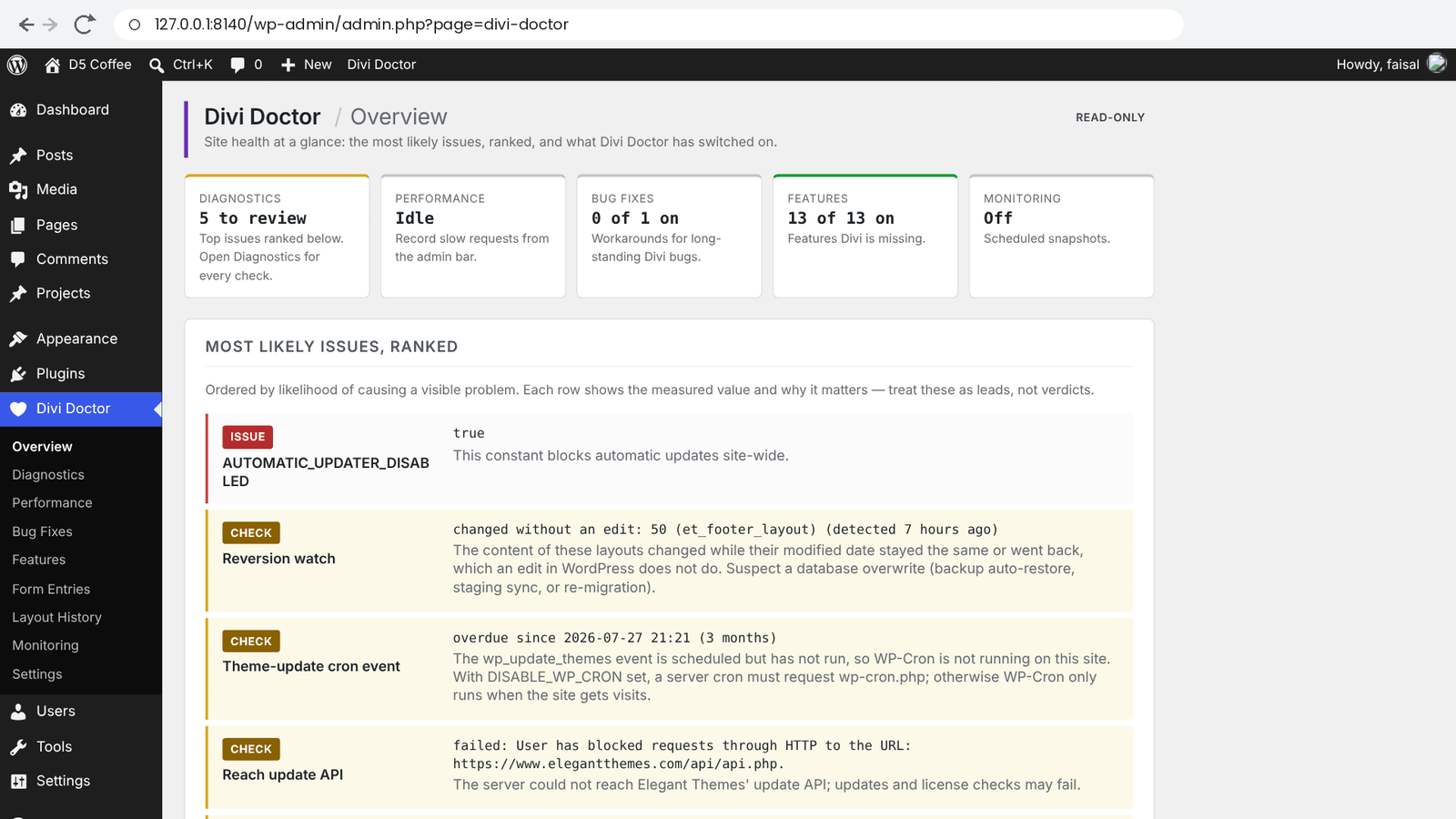
Go to Divi Doctor → Overview. Five cards at the top show the live state of each section. Click a card to open its section.
- Diagnostics: how many issues need a look, such as 5 to review, or No issues.
- Performance: Recording, with the minutes left, or Idle.
- Bug Fixes and Features: how many are switched on out of how many there are, such as 0 of 2 on.
- Monitoring: On or Off.
Below the cards, Most likely issues, ranked lists up to eight checks that came back as Issue or Check, with the ones most likely to cause a visible problem first. It draws on the site checks, the hosting checks and the quick Site Weight checks. Treat each row as a lead to follow, not a final verdict. The Environment section at the bottom lists your Divi version, whether the Divi 5 builder engine is present, your child theme, and your WordPress and PHP versions.
How to read a check
Every check is one row with a verdict badge, the name of the check, the value Divi Doctor measured and a short reason. Some rows also have a Suggested action.
- Issue (red): likely to cause a problem. Start here.
- Check (yellow): worth a look. It may or may not be what you’re seeing.
- OK (green): the value is within a healthy range.
- Info (gray): a fact about your site, with no verdict.
Turn on a feature
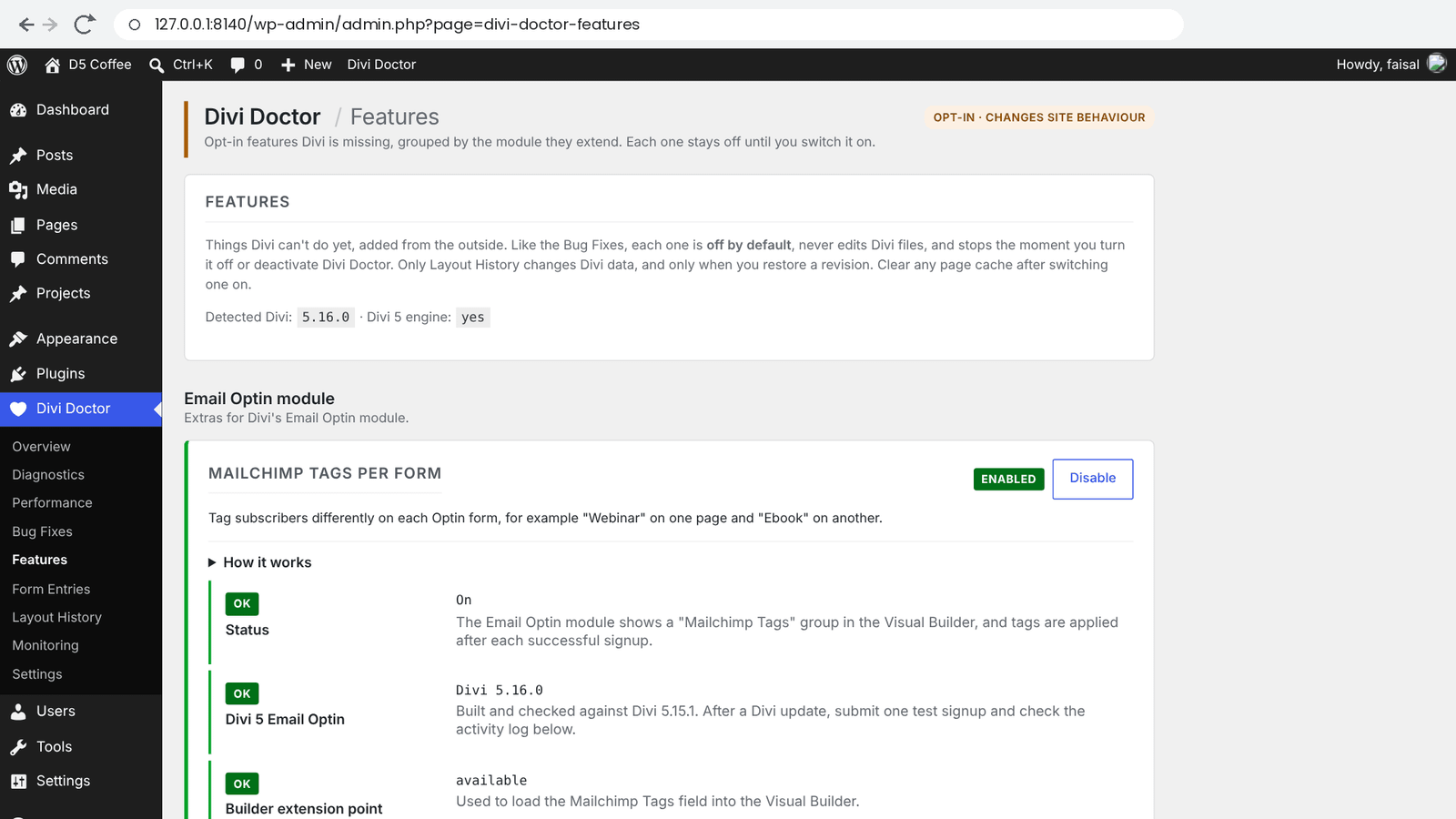
Go to Divi Doctor → Features. The top of the screen shows the Divi version Divi Doctor detected and whether the Divi 5 engine is present. If Divi 5 isn’t active, a notice says so. Features are grouped by the part of Divi they extend:
- Email Optin module: Mailchimp, ActiveCampaign and AWeber tags per form, and Klaviyo as an email account.
- Contact Form module: File Upload and Date Picker fields, custom email subject, HTML email and confirmation email, adding senders to a Mailchimp list, saving form entries, success message design, error messages, CC, BCC, routing by field and the page the form was sent from, and opening the redirect in a new tab, which works for the Email Optin module too.
- Backgrounds (all modules): YouTube and Vimeo background videos, and sound and pause buttons.
- Image module: image captions.
- Gallery module: captions in the slider layout, and images from a custom field.
- Portfolio modules: opening portfolio images in a lightbox.
- Blog module: Order By, Order and Ignore Sticky Posts.
- Video module: video from a custom field.
- Text module: nested numbered lists.
- Number Counter module: thousands separator.
- Theme Builder: layout history (revisions).
- Divi Library: Divi Library history (revisions).
The site-wide Accordion and Toggle options are in Divi Doctor → Settings instead of Features: Accordion and Toggle speed, and closing the open Accordion item. The bug fixes are switched on in Divi Doctor → Bug Fixes.
To switch one on:
- Find the feature’s card. Its badge says Disabled.
- Open How it works on the card. It explains what the feature adds, where its options are in the Visual Builder, how to check it works and its limits.
- Click Enable. The page reloads and the badge says Enabled.
- Read the check rows under the card. They confirm that the parts of Divi the feature needs are present, for example Builder extension point showing available.
- Clear any page cache, then follow the card’s How to verify steps.
Most features add their options inside the Visual Builder, on the module they extend, and a page only uses them where you set them. To switch a feature off, click Disable on its card.
Note: After a Divi update, send one test through each feature you use, such as a test message for the Contact Form features. Several feature cards show the Divi version they were built and checked against.
Next steps
- Divi site broke after an update: the order to check things in, from the Overview to Safe Mode, and what to do once you know the cause.
- Site checks, Exception Watch and hosting: what each check reports and what to do about it.
- Page Scan: find the CSS field that broke a page’s styling.
- Legacy Modules: find the Divi 4 modules that run in backwards compatibility mode on a page, and why.
- Request Profiler and Site Weight: see where the time goes when a save or page is slow.
- Monitoring: record snapshots over time and set up a server cron job.
- Known bug fixes: the opt-in workarounds for pages that flash unstyled while they load, and for a header that flashes after Divi clears its CSS cache.
- Date picker and file upload fields: add date picker and file upload fields to the Contact Form.
- Saved form entries: keep every Contact Form message on your site, with search and CSV export.
- Email subject, HTML email and confirmation email: your own email subject, HTML email and a thank-you email to the sender.
- Mailchimp for the Contact Form: add Contact Form senders to a Mailchimp list, with tags and consent.
- Success message design: style the message visitors see after sending a form.
- Contact Form error messages: your own error texts for each form and field, and their design.
- CC, BCC and routing by field: copy other addresses, send each message to the right address depending on what the visitor picked, and see which page it came from.
- Open the redirect in a new tab: open the Contact Form or Email Optin redirect page in a new tab while the form page shows its success message.
- Tags for the Email Optin module: tag subscribers differently on each Email Optin form, in Mailchimp, ActiveCampaign or AWeber.
- Klaviyo for the Email Optin module: add Klaviyo as an email account next to Divi’s own providers.
- YouTube and Vimeo video backgrounds: YouTube and Vimeo backgrounds with sound and pause buttons.
- Image captions: show captions under images in the Image module.
- Gallery captions and custom-field images: show titles and captions in a Gallery slider, and fill a Gallery from a custom field.
- Portfolio lightbox: open portfolio images in a lightbox instead of the project page.
- Blog order and sticky posts: sort the Blog module by title, date, comment count and more, and show sticky posts in their normal place.
- Video from a custom field: use Divi’s dynamic content for the Video and Video Slider modules’ video.
- Nested numbered lists: number lists inside lists as 1, a, i or 1, 1.1, 1.1.1 in the Text module.
- Number Counter thousands separator: show big numbers as 1,250,000 or 1.250.000, also while they count up.
- Theme Builder and Divi Library history: compare and restore earlier saves of Theme Builder layouts and Divi Library items.
- Accordion and Toggle settings: change how fast accordions and toggles open, and let visitors close the open Accordion item, site-wide.
- FAQ and troubleshooting: common questions, problems and what happens to your data when you uninstall.
- Changelog: what’s new in each release, and how to update.