Divi 5 background videos only take MP4 and WebM files. To use a YouTube video as a background in Divi 5, switch on YouTube and Vimeo background videos in Divi Doctor by YemLogic, then paste the link into the Video tab of the Background settings of any section, row, column or module. YouTube links work in both plugins, Vimeo links in Divi Doctor Pro, and both plugins can add sound and pause buttons for visitors. This page covers how to switch both features on, which links work, the button options, and how the video loads on desktops and phones.
Note: YouTube background videos and the sound and pause buttons are in both plugins. Vimeo background videos are part of Divi Doctor Pro. In the free plugin, Doctor for Divi, the card is called YouTube background videos, the field is Background Video YouTube URL, and the Vimeo field is listed below it, marked Pro. See Doctor for Divi (free) and Divi Doctor Pro.
Switch the features on
There are two separate switches. Both are off until you turn them on.
- Go to Divi Doctor → Features and scroll to Backgrounds (all modules).
- On the YouTube and Vimeo background videos card, click Enable.
- If you want sound and pause buttons, click Enable on the Background video sound and pause buttons card too.
- If your site uses a page cache, clear it.
The buttons feature also works on its own, with Divi’s MP4 and WebM background videos. The pause button only appears while Background video sound and pause buttons is enabled.
Add a YouTube or Vimeo background
The field is in the main Background options of any section, row, column or module.
- Open the page in the Visual Builder and open the section’s settings.
- Go to Background and choose the Video tab.
- Paste a YouTube or Vimeo link into Background Video YouTube / Vimeo URL, just below Background Video Webm.
- Save the page.
The video starts playing behind the section in the builder straight away. It plays muted, looped and without player controls, the same way Divi plays an MP4 background.
If the link isn’t a YouTube or Vimeo video link in a supported format, the builder shows This is not a YouTube or Vimeo video link. It will be ignored. under the field, and no video plays. The message follows the breakpoint and state you’re editing, so check each breakpoint where you set a link.
Supported links
| Service | Links that work |
|---|---|
| YouTube | youtube.com/watch?v=…, youtu.be/…, youtube.com/shorts/…, youtube.com/embed/… and youtube.com/live/…, plus the same links on m.youtube.com, music.youtube.com and youtube-nocookie.com. |
| Vimeo | vimeo.com/123456789, unlisted links such as vimeo.com/123456789/abcdef1234 or with ?h=…, player.vimeo.com/video/…, and video links inside channels, groups, showcases and albums. |
| Start time | Add t= to a YouTube link (for example ?t=90 or ?t=1m30s), or #t= to a YouTube or Vimeo link (for example #t=30s). The video starts at that point. |
You can leave out https://. Playlists and other links aren’t supported and are ignored. Only the video’s ID (and, for Vimeo, the unlisted hash and start time) is printed on the page.
Size and shape
The video always covers the whole area, cropping the edges when the shapes don’t match, so there are no black bars. Divi Doctor works out the video’s shape from Divi’s Background Video Width and Background Video Height fields if you fill them in. Otherwise it assumes 16:9, or 9:16 for YouTube Shorts.
Breakpoints, hover and sticky
The URL field works like Divi’s MP4 field: you can set a different link for tablet or phone, for the hover state, or for the sticky state. To stop the video at a smaller size, switch to that breakpoint and clear the field. If you set an MP4 for that breakpoint, it keeps playing there. The builder preview follows the breakpoint you’re viewing.
Sound and pause buttons
With Background video sound and pause buttons enabled, three more options appear in Background → Video, after Divi’s Pause Video While Not In View. They work with YouTube, Vimeo, MP4 and WebM backgrounds.
| Option | What it does | Default |
|---|---|---|
| Show Sound Button | Adds a mute / unmute button. The video still starts muted, because browsers only autoplay muted video; visitors click the button to hear it. | Off |
| Show Pause Button | Adds a pause / play button so visitors can stop the moving background. | On |
| Video Buttons Position | The corner where the buttons sit: Top left, Top right, Bottom left or Bottom right. Shown while either button is on. | Bottom right |
These options have one value per element. They don’t change per breakpoint or for hover and sticky.
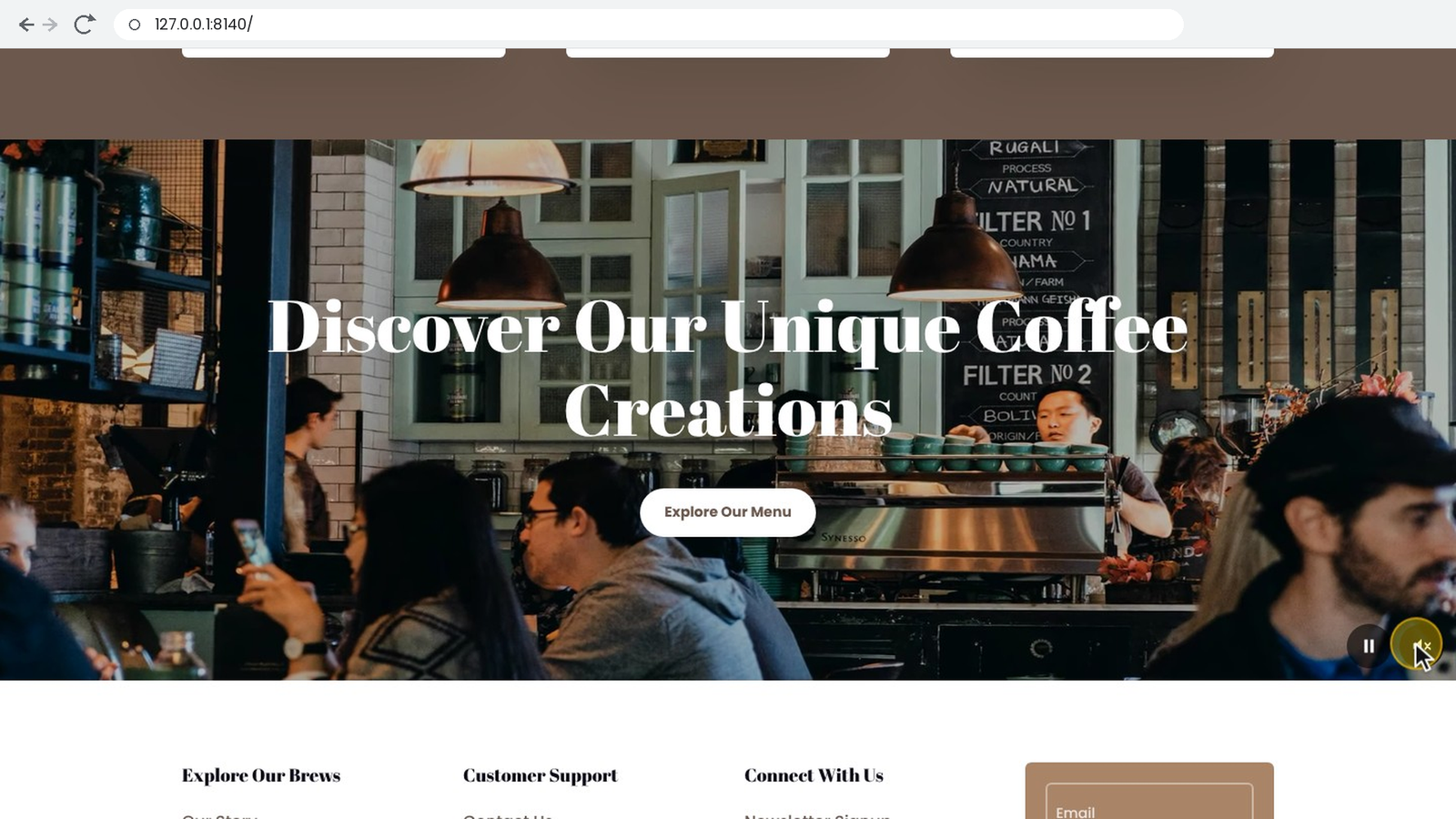
On the live page the buttons are round, dark and 44 pixels wide. Both share the chosen corner, with the pause button first. They stay hidden until a background video is actually playing, so they never show without a video or without JavaScript. Hovering a button shows what it will do next, such as “Unmute background video”. Visitors can also tab to a button and press Enter. The buttons don’t remember their state: the video starts muted and playing again on the next page view.
In the Visual Builder the buttons are always visible on any element whose preview has a background video, and they mute, unmute, pause and play the preview.
How the video loads
YouTube and Vimeo players are heavy, so Divi Doctor keeps them out of the first page load:
- The page’s HTML only holds an empty placeholder. The player is added after the page has finished loading and the browser is idle.
- A player loads only when its section is showing at the current screen size and is within 300 pixels of the visible area. Videos further down the page load as visitors scroll towards them.
- The player stays invisible until it reports that it’s playing, then fades in. Until then visitors see the section’s background color or image, so set one.
- If the player reports an error, for example a deleted or private video or one with embedding turned off, it’s removed and the background color or image stays.
- YouTube videos play from
youtube-nocookie.com. Vimeo videos play with Do Not Track turned on. - Divi’s Pause Video While Not In View pauses the video while it’s off screen. Divi’s Pause Video When Another Video Plays pauses it while another video or audio player on the page is playing.
- The video can’t be clicked or reached with the keyboard, so buttons and links in the section keep working.
Why a YouTube video appears a few seconds after it starts
Since YouTube redesigned its embedded player in 2026, the player draws its own previous, pause and next buttons over the picture for about three seconds each time a video starts to play, and for as long as it is paused. They can’t be switched off from outside the player. Divi Doctor (2.1.1 and later) keeps them out of your design:
- A YouTube video is shown about four seconds after it starts to play, with a short fade. Until then your background color or image shows.
- While the video is paused or buffering, the background color or image shows instead of a still frame with YouTube’s buttons.
- When the video reaches its end, it fades out, starts over, and fades in again about four seconds later. A long video works best. For a short loop without a break, use an MP4 or WebM file, or a Vimeo link (Divi Doctor Pro).
- A YouTube player that scrolled out of view is started again a screen before it comes back, so it is usually ready when you see it.
- A YouTube video that is only set for the hover state appears about six seconds after the pointer enters the element. For hover effects, use an MP4 or WebM file.
- The builder preview does the same.
Vimeo, MP4 and WebM backgrounds are not affected. Developers can change the delay with the ddoc_bg_video_settle filter (milliseconds; 0 shows the video at once, with YouTube’s buttons).
Phones and reduced motion
- On phones the video plays inside the page, not full screen. To save phone users’ data, clear the URL field at the Phone breakpoint and set a background image instead.
- If a phone blocks autoplay, for example in Low Power Mode, the player stays hidden and the background color or image shows instead of a still frame.
- Visitors who turned on their browser’s data saver don’t get a YouTube or Vimeo player at all.
- Visitors who turned on “reduce motion” on their device don’t get a YouTube or Vimeo player either. MP4 and WebM backgrounds with a pause button start paused for them, and they can press play.
Limits
- Both features need Divi 5. With Divi 4 the fields don’t appear.
- A YouTube video appears about four seconds after it starts to play, and your background color or image shows while it is paused, buffering or starting over. See Why a YouTube video appears a few seconds after it starts.
- If an MP4 and a YouTube or Vimeo link are set for the same breakpoint, the YouTube or Vimeo video shows on top and the MP4 still downloads. Clear one of them.
- Some Vimeo plans and privacy settings don’t allow embedding. Such a video doesn’t play.
- Vimeo’s background player may ignore the unmute request, so the sound button may not work with every Vimeo video.
- After changing a background, clear any page cache so visitors get the new version.
Note: The video is served by YouTube or Vimeo, so their servers receive your visitors’ requests. Mention them in your privacy or cookie notice.
If a video doesn’t play, see FAQ and troubleshooting.
Questions
Can I use a YouTube video as a background in Divi 5?
Not with Divi alone: Divi 5 background videos only take MP4 and WebM files. With Divi Doctor you paste a YouTube link into Background → Video of any section, row, column or module, and it plays muted and looped behind the content. YouTube backgrounds are in the free plugin, Doctor for Divi, and in Divi Doctor Pro.
Can I use a Vimeo video as a background in Divi 5?
Yes, with Divi Doctor Pro. Paste the Vimeo link into the Background Video YouTube / Vimeo URL field, including unlisted Vimeo links. In the free plugin the Vimeo field is listed below the YouTube field, marked Pro.
Which YouTube and Vimeo links work as a background?
YouTube: watch, youtu.be, Shorts, embed and live links. Vimeo: vimeo.com/123456789, unlisted links, player links, and video links inside channels, groups, showcases and albums. You can leave out https://. Playlists and other links aren’t supported and are ignored.
Why does my YouTube background appear a few seconds after it starts?
Since YouTube redesigned its embedded player in 2026, the player draws its own previous, pause and next buttons over the picture for about three seconds each time a video starts to play. Divi Doctor 2.1.1 and later shows a YouTube video about four seconds after it starts, with a short fade, so those buttons stay out of your design. Until then your background color or image shows, so set one.
Does a YouTube or Vimeo background slow down the page?
The player is kept out of the first page load. The page’s HTML only holds an empty placeholder, and the player is added after the page has finished loading and the browser is idle. A player loads only when its section is showing at the current screen size and is within 300 pixels of the visible area.
Can visitors unmute or pause a background video?
Yes. Enable Background video sound and pause buttons under Divi Doctor → Features, then switch on Show Sound Button or Show Pause Button in Background → Video. The video still starts muted, because browsers only autoplay muted video. The buttons work with YouTube, Vimeo, MP4 and WebM backgrounds.
Can I use a different background video on phones, or none?
Yes. The URL field works like Divi’s MP4 field: you can set a different link for tablet or phone, for the hover state or for the sticky state. To stop the video at a smaller size, switch to that breakpoint and clear the field.
What do visitors see if the YouTube or Vimeo video is deleted or private?
They see the section’s background color or image. If the player reports an error, for example a deleted or private video or one with embedding turned off, Divi Doctor removes the player and the background color or image stays.
Can the background video start at a certain time?
Yes. Add t= to a YouTube link, for example ?t=90 or ?t=1m30s, or #t= to a YouTube or Vimeo link, for example #t=30s. The video starts at that point.
Where do the YouTube and Vimeo players load from?
YouTube videos play from youtube-nocookie.com, and Vimeo videos play with Do Not Track turned on. Only the video’s ID, and for Vimeo the unlisted hash and start time, is printed on the page.