Divi’s Contact Form can’t add the people who write to you to a mailing list. Divi Doctor connects the form to Mailchimp, using the Mailchimp account you’ve already added in Divi. This page covers what you need, every option, what happens when a visitor sends the form, and how to check the results.
What you need
- A Mailchimp account connected in Divi. Divi Doctor uses the Mailchimp accounts and lists Divi has saved. If you haven’t connected one yet, open any Email Optin module in the Visual Builder and add it under Content → Email Account → Add. Your API key stays on the server and never reaches the browser.
- A field with the Field ID
email. The sender’s address is read from it, as in Divi’s default form. The field with the IDnameis sent to Mailchimp’s first-name field (FNAME). - The feature switched on. Go to Divi Doctor → Features and, under Contact Form module, click Enable on Add senders to a Mailchimp list.
The feature card’s Mailchimp account row shows how many accounts and lists Divi has saved. If it says None connected or shows no lists, connect Mailchimp or fetch the lists in an Email Optin module first.
Set up a form
- Open the page in the Visual Builder and open the Contact Form’s settings.
- In the Content tab, open the Mailchimp group and switch on Add Sender To Mailchimp.
- Pick a List.
- Optionally, add Tags so you know where each contact came from.
- Check Double Opt-In, Ask For Consent and Consent Text, then save the page.
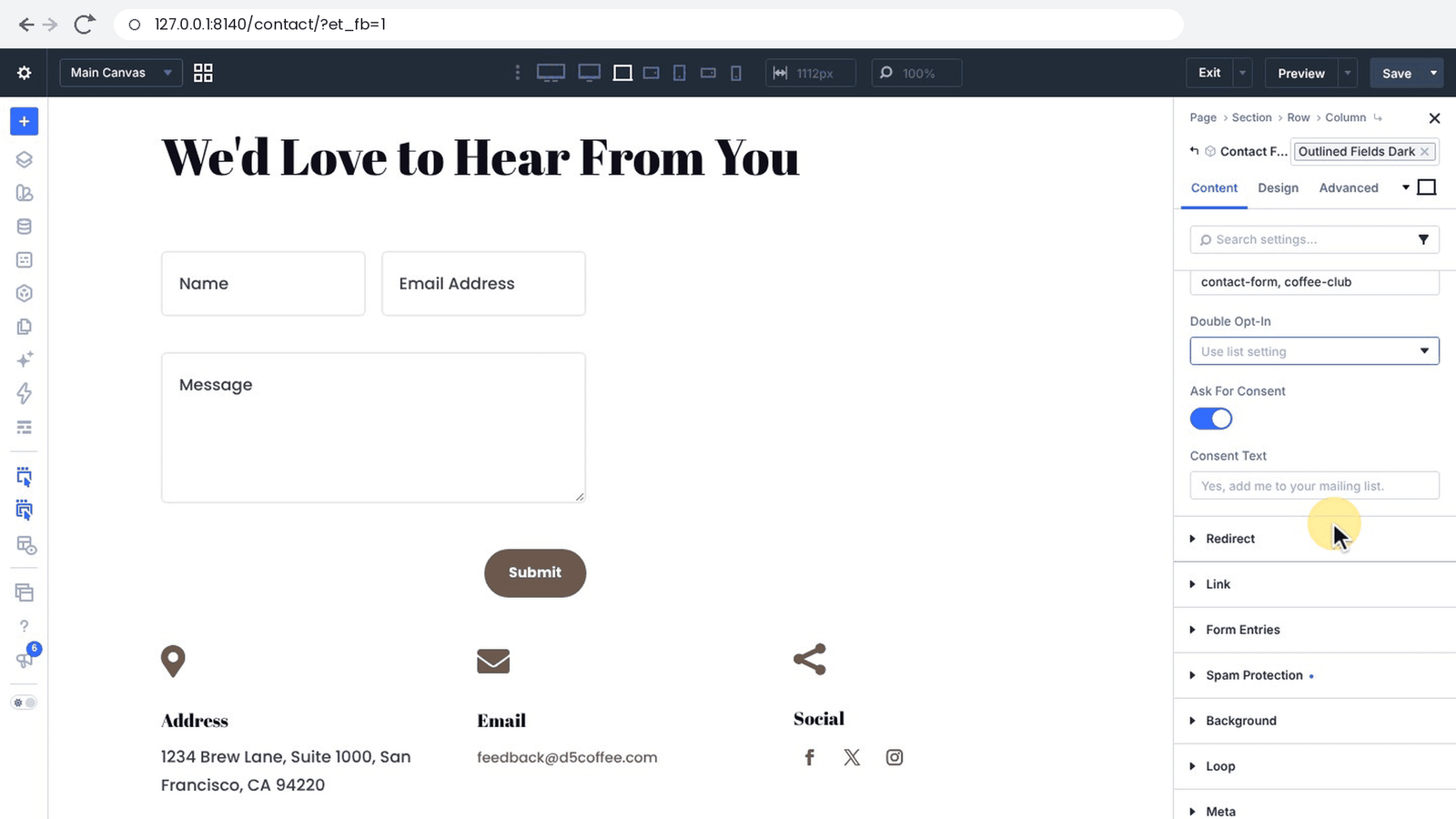
Options
| Option | What it does | Default |
|---|---|---|
| Add Sender To Mailchimp | Subscribes the person who sends this form to a Mailchimp list. The other options appear when this is on. | Off |
| List | The list to add senders to. Each list is shown with its account name in brackets. There is no default list: until you pick one, nobody is added and the log says so. If no lists are saved, a warning appears here instead. | Select a list |
| Tags | Optional comma-separated Mailchimp tags, for example Contact Form, Website. Tags that don’t exist in Mailchimp yet are created. Up to 50 tags of up to 100 characters each; repeats are dropped. | Empty |
| Double Opt-In | For new contacts. Use list setting follows the list’s own setting in Mailchimp, like Divi’s Email Optin module. On: Mailchimp sends a confirmation email or Off: subscribe right away override it. See the spam-protection rule. | Use list setting |
| Ask For Consent | Shows a checkbox above the form’s submit button. Only visitors who tick it are subscribed; the message is sent either way. | On |
| Consent Text | The text next to the checkbox. Plain text only. | Yes, add me to your mailing list. |
If you add a list in Mailchimp later, it won’t appear here straight away. Open an Email Optin module, fetch the lists again for that account, then reload the builder.
What visitors see
With Ask For Consent on, the live form shows an unticked checkbox with your consent text, above the captcha and submit button. Clicking the text ticks the box. If the form comes back with an error, such as a missing field, the box keeps its tick.
The checkbox appears on the live page only, not in the builder canvas. To check it, view the page in a private browser window. With Ask For Consent off, there’s no checkbox and every sender is subscribed.
What happens when the form is sent
- Divi checks the form and sends your email exactly as before.
- Only if Divi’s email went out, the consent box was ticked (when consent is on) and the
emailfield holds a valid address does Divi Doctor contact Mailchimp. A failed check, captcha or email means no Mailchimp call. - Divi Doctor adds the address to the list, or updates the contact if it’s already there, with the sender’s name as the first name. If your list has no first-name field, the contact is added without it.
- Your tags are added to the contact.
Where your server allows it, this runs after the visitor’s page has loaded, so they don’t wait for Mailchimp. On servers where that isn’t possible, the calls use short time limits and aren’t retried. If the box isn’t ticked, nothing is sent to Mailchimp and nothing is logged; the message still reaches you.
New, existing and unsubscribed contacts
- New contacts are added as pending (Mailchimp sends them its opt-in email and they become subscribed once they confirm) or as subscribed, depending on Double Opt-In.
- Existing contacts keep their status. Someone who unsubscribed is never re-subscribed, and a cleaned address isn’t changed. Your tags are still added to the contact.
- Pending contacts stay pending until they confirm Mailchimp’s opt-in email.
The spam-protection rule
Without real spam protection, a bot could send your form with other people’s addresses and subscribe them. So until the form uses Content → Spam Protection → Use A Spam Protection Service, new contacts are always added as pending, and must confirm Mailchimp’s opt-in email, whatever Double Opt-In says. Divi’s basic captcha doesn’t count, because a bot can answer it. The log notes each time this happened.
Hourly limits
Mailchimp calls from Contact Forms are limited per clock hour: 3 for any one email address, 10 from any one visitor (by IP address) and 60 across the whole site. When a limit is reached, the call is skipped and logged as Skipped; the visitor’s message is sent as usual. The counts start again when the next hour begins.
Check the log
The Add senders to a Mailchimp list card in Divi Doctor → Features shows the last Mailchimp call. Open Recent Mailchimp calls to see the last 30, with these columns: When, Result, Contact (masked, for example ja***@example.com), Audience (list) ID, Tags and Details. Result is Saved, Skipped or Failed, with Mailchimp’s HTTP status code when a call was made. Click Clear log to empty the list.
| Details | What it means |
|---|---|
| Subscribed. | The contact is on the list. |
| Pending: waiting for the contact to confirm Mailchimp’s opt-in email. | Mailchimp sent, or already sent, its opt-in email. |
| Already unsubscribed: kept unsubscribed. | The person had unsubscribed and stays that way. |
| Address is cleaned in Mailchimp: not changed. | Mailchimp has marked the address as undeliverable. |
| Tags applied. or Tags failed: … | The result of adding your tags. |
| Not sent: no Mailchimp list is selected for this form. | Pick a List in the form’s Mailchimp group. |
| Not sent: the form’s Mailchimp list is not saved in Divi any more. | The list was removed from Divi. Pick a list again. |
| No Mailchimp API key saved in Divi for this account. | Reconnect the account in an Email Optin module. |
| Skipped: hourly limit reached. | See Hourly limits. |
Other failures show Mailchimp’s own error text, with the visitor’s address masked.
The two Not sent lines are logged only after Divi’s email for that message went out, and only when the consent box was ticked (if consent is on). They have hourly limits of their own, with the same numbers as real signups, so a form without a working list can’t fill the log or use up the limits for real signups.
Limits
- Mailchimp only, and the Divi 5 Contact Form module only.
- Only lists Divi has saved can be used.
- A mail plugin that replaces WordPress’s
wp_mail()function without running itswp_mailfilter stops the Mailchimp step, because Divi Doctor can’t see that Divi’s email went out.
To tag subscribers from Divi’s Email Optin module, see Mailchimp tags for the Email Optin module.
For developers
ddoc_cf_mailchimp_limits: the hourly limits, as[ 'recipient' => 3, 'ip' => 10, 'site' => 60 ]. Each value is at least 1.ddoc_client_ip: the visitor IP used for the per-visitor limit. By default it is the connection address (REMOTE_ADDR). Behind a proxy, return the real address, taken only from a header your proxy overwrites.
Questions
Can the Divi 5 Contact Form add senders to a Mailchimp list?
Not by itself. With Divi Doctor Pro, enable Add senders to a Mailchimp list, then switch on Add Sender To Mailchimp in the form’s Mailchimp group and pick a list. It uses the Mailchimp account you’ve already connected in Divi.
Do I have to enter my Mailchimp API key again?
No. Divi Doctor uses the Mailchimp accounts and lists Divi has saved. Your API key stays on the server and never reaches the browser.
Are visitors asked for consent before they are subscribed?
Yes, by default. Ask For Consent shows an unticked checkbox with your consent text above the form’s submit button. Only visitors who tick it are subscribed; the message is sent either way.
Does the form use double opt-in?
By default Double Opt-In follows the list’s own setting in Mailchimp, and you can override it per form. Until the form uses a spam protection service under Content → Spam Protection, new contacts are always added as pending and must confirm Mailchimp’s opt-in email, whatever Double Opt-In says.
What happens if the sender is already on the list, or has unsubscribed?
Existing contacts keep their status. Someone who unsubscribed is never re-subscribed, and a cleaned address isn’t changed. Your tags are still added to the contact.
Can I tag the contacts that come from a contact form?
Yes. Type comma-separated tags into Tags, for example Contact Form, Website. Tags that don’t exist in Mailchimp yet are created. A form can have up to 50 tags of up to 100 characters each.
Is the sender subscribed when the form fails?
No. Divi Doctor contacts Mailchimp only if Divi’s email went out, the consent box was ticked (when consent is on) and the email field holds a valid address. A failed check, captcha or email means no Mailchimp call.
Which form fields are sent to Mailchimp?
The address from the field with the Field ID email, and the field with the ID name as the first name. If your list has no first-name field, the contact is added without it.
Why can’t I see the consent checkbox in the builder?
The checkbox appears on the live page only, not in the builder canvas. To check it, view the page in a private browser window.