One missing brace in a Custom CSS field can break the styling of a whole page, and finding that field by hand means opening every module and layout. Page Scan checks the CSS fields that print on a page and tells you which field and line to fix.
What Page Scan checks
Page Scan reads these CSS fields:
- The page you choose: its Page Settings › Custom CSS, and the Custom CSS fields of every section, row, column and module on it (such as Free-Form CSS and Main Element), for every breakpoint and for hover and sticky states.
- Every Theme Builder layout: headers, bodies and footers, with the same fields.
- Every off-canvas panel, with the same fields.
- Customizer › Additional CSS. Divi’s Theme Options → Custom CSS is saved in the same place, so this covers it too.
It scans all Theme Builder layouts and off-canvas panels, not only the ones your page uses, so nothing is missed. Check the layout name and ID in each result against the template your page uses. On a site with more than 300 layouts, only the 300 most recently changed are scanned, and a Layout cap row says so.
Page Scan doesn’t read stylesheets from your child theme or other plugins. For content built with Divi 4, it checks the Page Custom CSS only, and a row says module CSS wasn’t parsed.
Problems it finds
Page Scan checks CSS syntax. It reports the mistakes that make a browser drop styles:
| Message | Verdict | What happens on the page |
|---|---|---|
| Unclosed “{“ | Issue | Every CSS rule printed after this block is swallowed into it, so styles further down the page, or from other modules, stop working. |
| Unclosed comment “/*” | Issue | Everything after it is ignored. |
| Unclosed quote | Issue | The rule it’s in is dropped. |
| Unclosed “(” or extra “)” | Issue | The declaration is invalid; an unclosed one can swallow what follows. |
| Extra “}” with no matching “{“ | Check | A stray brace, usually left over from an edit. |
| Malformed “!important” | Check | A typo such as limportant or important without the !. That declaration is dropped. |
Page Scan doesn’t judge whether your CSS does what you meant, for example a wrong selector or color. It only finds syntax that breaks.
Run a scan
- Find the ID of the page that shows the problem. In Pages → All Pages, hover over the page title: the edit link in your browser’s status bar contains
post=followed by the ID. You can scan a post or any other content type the same way. - Go to Divi Doctor → Diagnostics → Page Scan.
- Enter the ID in Page / post ID and click Scan.
To check only the Theme Builder layouts, off-canvas panels and Additional CSS, leave the ID empty and click Scan. That’s useful when every page on the site looks wrong. If the ID doesn’t exist, the result says not found.
Read the results
The results have up to three sections:
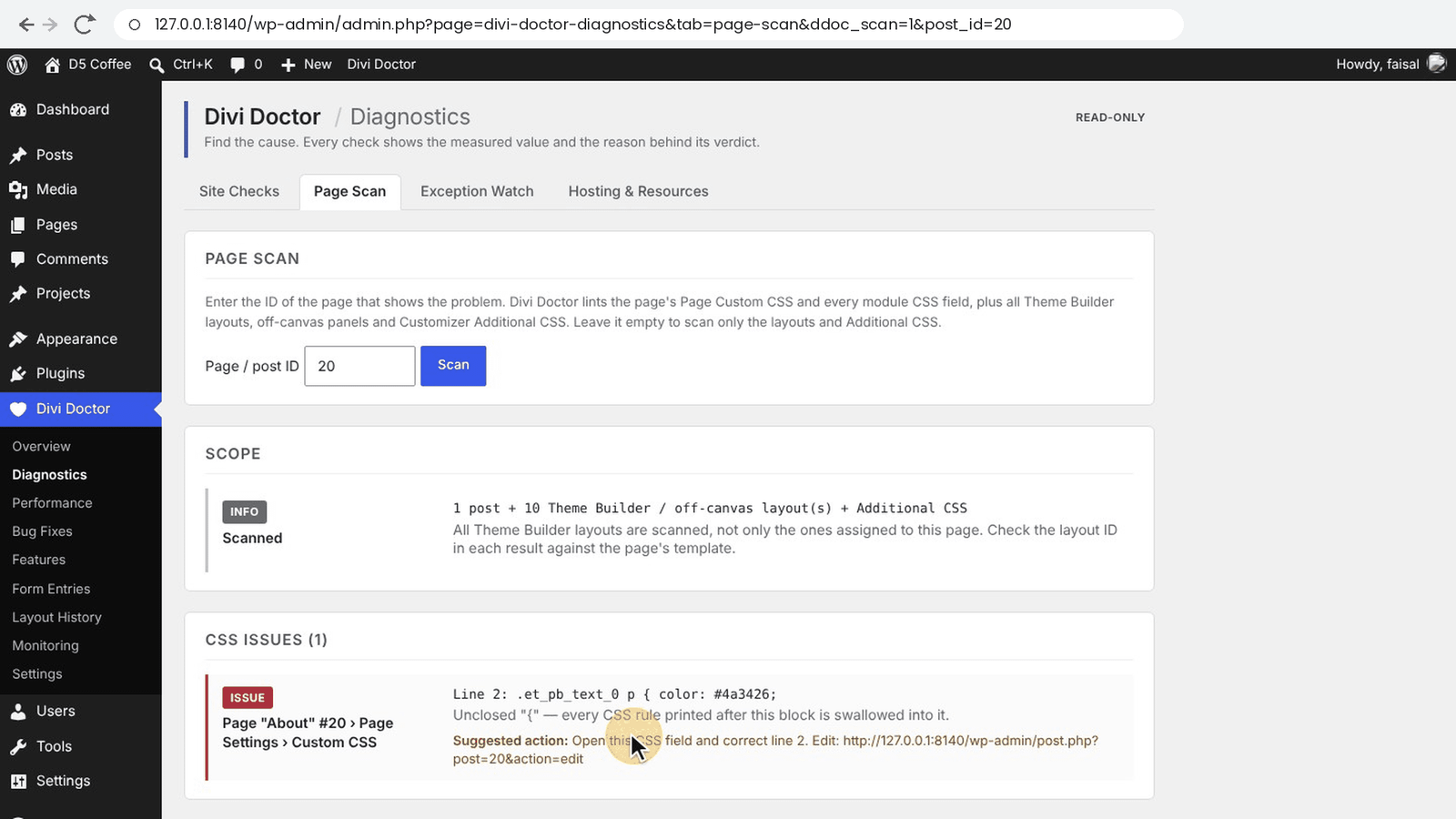
- Scope: what was scanned, for example
1 post + 10 Theme Builder / off-canvas layout(s) + Additional CSS. - CSS issues: one row per problem, most serious first. If there are none, you see No CSS syntax issues found in any scanned field.
- Clean: each page, layout or Additional CSS that had no problems.
Each issue row tells you exactly where to look:
- The label is the path to the field. It starts with the content type, title and ID, for example
Page "About" #20orHeader layout "Main header" #45. Then comes the field:Page Settings › Custom CSS, or a module path such asSection 2 › Row 1 › Column 1 › divi/button › CSS desktop › value › mainElement. Admin labels you’ve given sections, rows and modules are shown in brackets. - The value shows the line number inside that field and the text of that line.
- The reason explains the problem. Suggested action repeats the line number and ends with Edit: and the address where you can edit that content: the page’s edit screen, Divi → Theme Builder for a Theme Builder layout, or the Visual Builder of the page an off-canvas panel belongs to. An off-canvas panel that belongs to a Theme Builder layout points to Divi → Theme Builder, and a global panel that belongs to no page has no address.
In a module path, the part after CSS is the breakpoint, such as desktop, tablet or phone. Next comes the state: value is the normal state, and hover and sticky are the others. The last part is the field: freeForm is Free-Form CSS, mainElement is Main Element, before and after are the Before and After fields, and other names are the module’s own element fields in the same group.
Fix the problem
- Open the page or layout named in the result in the Visual Builder. Start from the address after Edit:. For a Theme Builder layout that’s Divi → Theme Builder, where you open the layout; for an off-canvas panel it’s the Visual Builder of the page it belongs to.
- Open the field from the path: the page’s settings for
Page Settings › Custom CSS, or the module’s Advanced tab, Custom CSS group, for a module field. Check the breakpoint and state too. - Go to the line number from the result and correct it, for example by adding the missing
}. - Save, clear any page cache, and reload the page.
- Run the scan again to confirm the row has gone.
Note: The line number counts from the first line of that one field, not of the whole page. A problem reported on line 2 may only show further down the page, because the browser swallows the rules that come after it.
For Additional CSS, go to Appearance → Customize → Additional CSS, or Divi’s Theme Options, and correct the line there.
Questions
How do I find broken CSS on a Divi page?
Go to Divi Doctor → Diagnostics → Page Scan, enter the page’s ID and click Scan. Page Scan reads the Custom CSS fields that print on that page: the page’s own Custom CSS, the fields of every section, row, column and module, every Theme Builder layout, every off-canvas panel and the Customizer’s Additional CSS. Each result names the field and the line to fix.
What happens when a Divi Custom CSS field has an unclosed brace?
Every CSS rule printed after that block is swallowed into it, so styles further down the page, or from other modules, stop working. Page Scan reports it as Unclosed “{“, with the content, the field and the line number.
Which CSS mistakes does Page Scan find?
Syntax that makes a browser drop styles: an unclosed brace, an unclosed comment, an unclosed quote, an unclosed or extra parenthesis, an extra closing brace and a malformed !important. It doesn’t judge whether your CSS does what you meant, for example a wrong selector or color.
How do I find a page’s ID in WordPress?
In Pages → All Pages, hover over the page title: the edit link in your browser’s status bar contains post= followed by the ID. You can scan a post or any other content type the same way.
Can I scan only the Theme Builder layouts?
Yes. Leave the ID empty and click Scan to check only the Theme Builder layouts, off-canvas panels and Additional CSS. That’s useful when every page on the site looks wrong.
Does Page Scan check my child theme’s stylesheet?
No. Page Scan doesn’t read stylesheets from your child theme or other plugins. For content built with Divi 4, it checks the Page Custom CSS only.
Does Page Scan fix the CSS for me?
No. It shows where the mistake is: the content, the field, the breakpoint, the state and the line. You open that field in the Visual Builder, correct the line, save, clear any page cache and run the scan again to confirm the row has gone.
What does the line number in a Page Scan result mean?
The line number counts from the first line of that one field, not of the whole page.
Is Page Scan in the free plugin?
Yes. Page Scan is part of Diagnostics, which is in Doctor for Divi, the free plugin, and in Divi Doctor Pro.