This page explains every field in the link panel, how slugs and the base prefix make up the short link, which redirect type to choose, and how to copy, edit, delete and find links.
The links list
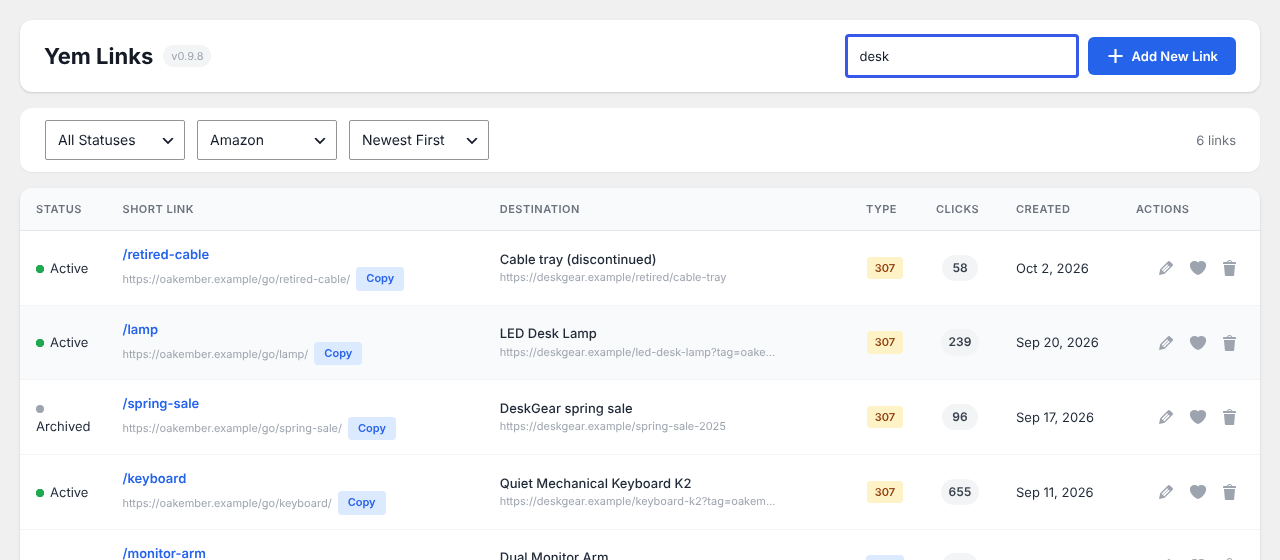
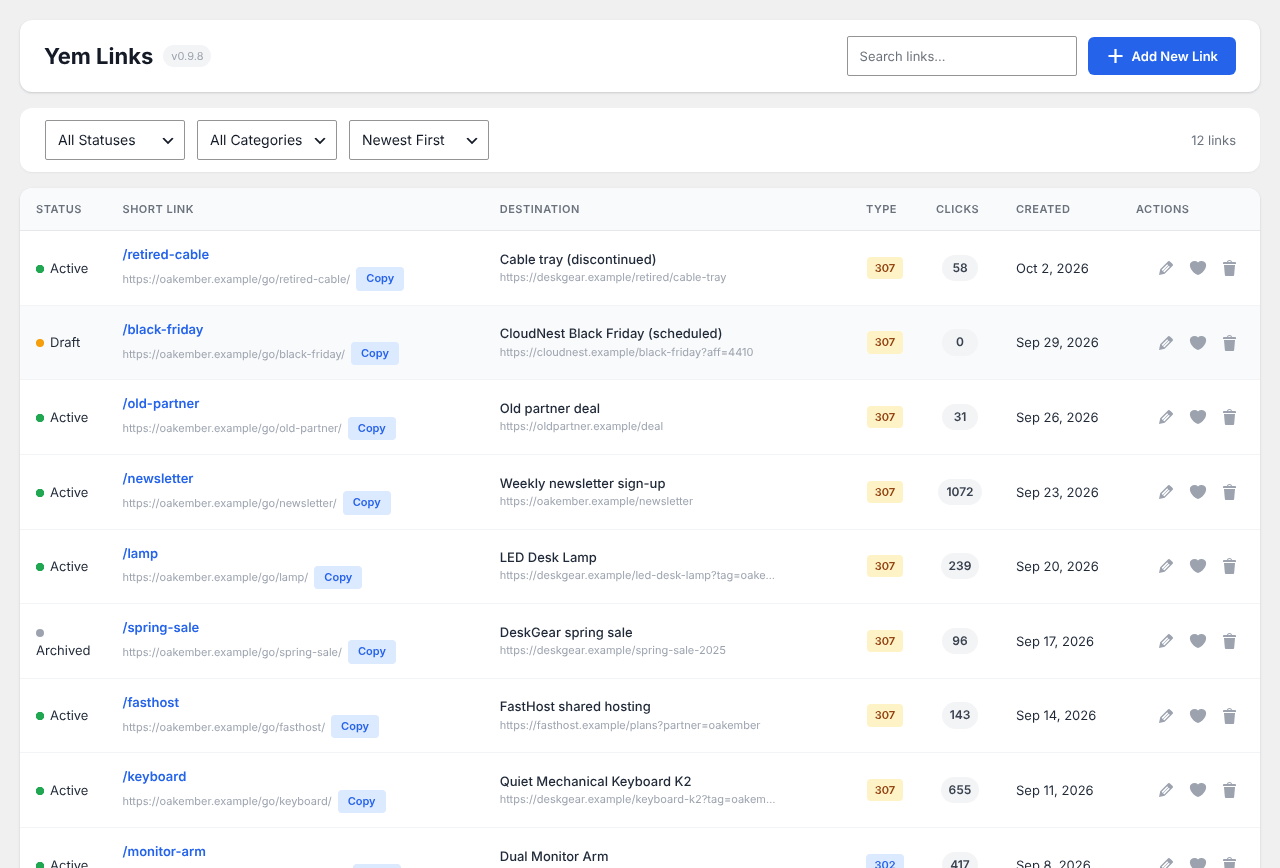
Yem Links → All Links shows your links 20 to a page, newest first. The table has these columns:
- Status: Active, Draft or Archived.
- Short Link: the slug, the full short link and a Copy button.
- Destination: the link’s title (or its slug, if it has no title) and the first 50 characters of the destination URL.
- Type: the redirect type, such as
307. - Clicks: the click count, with known bots left out. See Click counts and bot filtering.
- Created: the date the link was created.
- Actions: the Edit, Health Check and Delete icons.
Add a link
Click Add New Link at the top of the screen, fill in the panel and click Save Link. To close the panel without saving, click the close icon, click outside the panel or press Esc.
If a required field is missing or invalid, the field is outlined and a message appears below it, such as Please enter a valid http:// or https:// URL. or This slug is already in use.
Fields in the link panel
| Field | What it does |
|---|---|
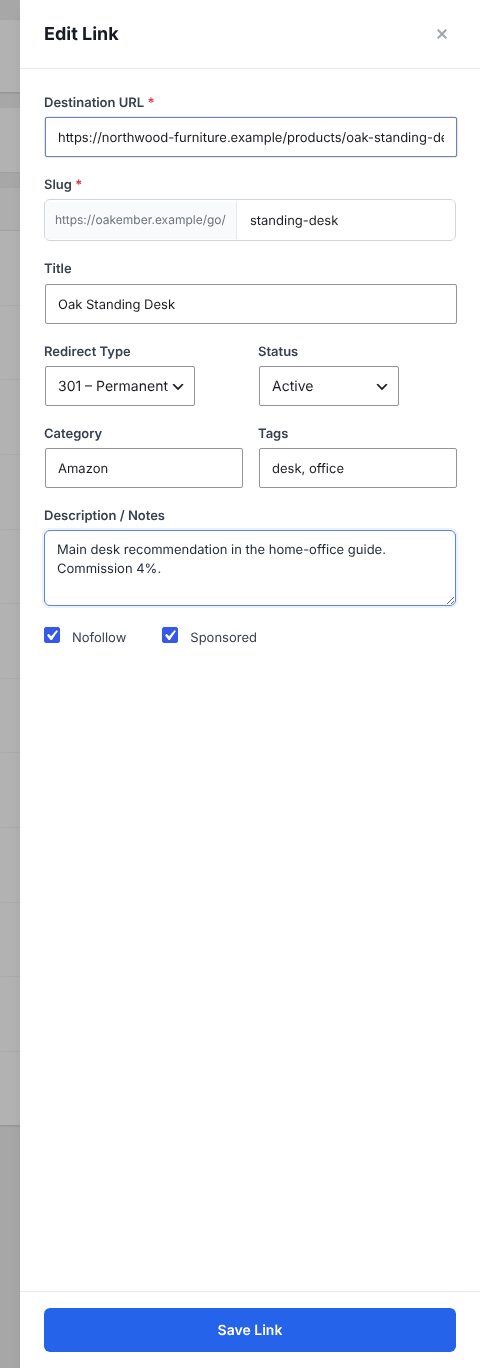
| Destination URL (required) | The address visitors are sent to. It must be a full http:// or https:// URL. When you leave the field, Yem Links fetches the page title if Title is empty, and suggests a slug if Slug is empty. |
| Slug (required) | The last part of the short link, up to 100 characters. See Slugs and the base prefix. |
| Title | A name for the link, up to 255 characters. It appears in the list, in the block editor search and as the default text of the Yem Link block. |
| Redirect Type | 307 – Temporary (default), 302 – Found or 301 – Permanent. See Redirect types. |
| Status | Active (default), Draft or Archived. Only Active links redirect. See Active, Draft and Archived. |
| Category | One category per link. Type a new name or pick one you’ve used before. |
| Tags | Comma-separated words, for example summer, hosting. |
| Description / Notes | Private notes about the link. Visitors never see them. |
| Nofollow | Ticked by default. See Nofollow and sponsored. |
| Sponsored | Unticked by default. See Nofollow and sponsored. |
With Yem Links Pro installed, an Advanced Options section appears below these fields. It’s described in Pro features.
Slugs and the base prefix
A short link has three parts: your site address, the base prefix and the slug. With the default prefix go and the slug blue-widget, the short link is https://yoursite.com/go/blue-widget/.
Slug rules
- Slugs are saved the way WordPress saves post slugs: lowercase, with spaces turned into hyphens and most punctuation removed. Slashes are removed too, so a slug can’t contain extra path segments.
- Each slug must be unique and can be up to 100 characters long.
- Short links aren’t case-sensitive, so
/GO/Blue-Widget/works the same as/go/blue-widget/. The trailing slash is optional. - When you add a link, the suggested slug comes from the last part of the destination’s path, or from the domain name if the URL has no path. Suggestions are up to 50 characters.
- Anything after a question mark in the short link, such as
?utm_source=newsletter, isn’t passed on to the destination. Yem Links Pro can forward it.
Change the base prefix
In Yem Links → Settings, under General, change Base Slug / Prefix and click Save Settings. The hint below the field suggests go, out, recommends and refer, but any word works.
Every link moves to the new prefix at once. Links you inserted with the Yem Link block update automatically. Short links you pasted by hand or shared elsewhere still use the old prefix, and those addresses stop working.
If the new prefix matches the slug of an existing page or post, Settings shows a warning. Yem Links handles any address under that prefix that matches one of your link slugs before WordPress looks for the page. Settings also warns you if you choose recommends while ThirstyAffiliates is active, or refer while Easy Affiliate Links is active, because those plugins use the same prefix.
Note: Changing a link’s slug or the base prefix breaks every copy of the old short link that you pasted by hand, sent in emails, posted on social media or printed. Yem Link blocks are the exception: they always point to the current address.
Redirect types
The redirect type is the HTTP status code Yem Links sends with the redirect. Visitors don’t notice any difference; browsers and search engines do.
307 – Temporary (default)
Tells browsers and search engines that the move is temporary and the short link should be requested again next time. Use it for affiliate links and any link whose destination you might change.
302 – Found
Also temporary. It’s the older and more widely recognised temporary code. Choose it if a partner, ad platform or tool asks for a 302; otherwise 307 does the same job.
301 – Permanent
Says the address has moved for good, so search engines treat the destination as the page to remember. Use it when a short link permanently replaces an old URL, for example a retired page on your own site.
Yem Links sends no-cache headers with every redirect, so browsers check the short link again on each visit, even for a 301. If you change the destination later, visitors go to the new one.
Active, Draft and Archived
Only Active links redirect. A Draft or Archived short link isn’t recognised, so the request carries on to WordPress and usually ends on your 404 page. Draft and Archived links are also left out of the bulk health check and the Yem Link block search, and blocks that point to them show nothing.
Draft and Archived behave the same way. Use whichever label suits you, for example Draft for links you haven’t published yet and Archived for retired ones.
Categories and tags
Category holds one category per link. As you type, the field suggests categories you’ve used before. The All Categories filter above the list shows one category at a time; a category you’ve just created appears in the filter after you reload the page.
Tags takes comma-separated words. Tags are saved with the link and returned by the REST API, but the links list doesn’t search or filter by tag.
Nofollow and sponsored
Each link has its own Nofollow and Sponsored boxes. New links start with the defaults from Settings (nofollow on, sponsored off). Changing the defaults doesn’t change links you’ve already saved.
The boxes control:
- the
relattribute on links inserted with the Yem Link block - in Pro, the
relattribute on Auto-Linker links and product boxes - the
X-Robots-Tagheader sent with the redirect. It always containsnoindex, so search engines don’t index the short link itself, and addsnofollowwhen the link’s Nofollow box is ticked.
If you paste a short link into a post by hand, Yem Links doesn’t add rel attributes to it. Add them yourself in the editor, or insert the link with the Yem Link block.
Copy a short link
Click Copy next to the short link in the Short Link column. A short confirmation message appears. If your browser blocks clipboard access, you see Copy failed. Please copy manually. instead; select the short link text and copy it yourself.
Edit a link
- Click the pencil icon (Edit) in the Actions column. The Edit Link panel opens with the link’s details.
- Change what you need and click Save Link.
Changes apply from the next click. Editing a link keeps its click count.
Delete a link
Click the trash icon (Delete) in the Actions column and confirm. Deleting removes the link and its click count permanently; there’s no trash to restore it from. With Pro, the link’s click log, split test, Auto-Linker keywords and Link in Bio entry are removed too.
If you might need the link again, set its status to Archived instead.
Search, filter and sort
- Search links… matches text in the slug, the destination URL and the title. Results update as you type.
- The status filter (All Statuses) shows only Active, Draft or Archived links.
- The category filter (All Categories) shows the links in one category.
- The sort menu offers Newest First, Most Clicks, Slug (A-Z) and Title (A-Z).
The number of matching links appears at the right of the filter bar. If nothing matches, the list shows No links match your search.