The Divi 5 Contact Form has no file upload or date field of its own. Divi Doctor Pro by YemLogic adds both as new field types: File Upload, whose files are attached to the form’s email, and Date Picker, which opens a calendar. This page covers how to switch them on, every option in the builder, what visitors see, and how uploaded files reach your email and your saved entries.
Switch the fields on
Each field type has its own switch, and both are off until you turn them on.
- Go to Divi Doctor → Features.
- Under Contact Form module, find the Date Picker field card and click Enable.
- Find the File Upload field card and click Enable.
- If your site uses a page cache, clear it.
Each card’s badge changes to Enabled. The new types now appear in the Type list of every Contact Form field in the Visual Builder. The fields work with the Divi 5 Contact Form module only.
Add a field to a form
- Open the page in the Visual Builder and open the Contact Form’s settings.
- In Content → Elements, click Add New Field.
- In the new field’s Text group, give it a Title, for example “Preferred date” or “Your CV”. Visitors see the title as the field’s label.
- Open Field Options and set Type to Date Picker or File Upload. The options for that type appear below.
- Set the options you need, then save the page.
Divi’s own field settings work as usual: Field ID, Required Field, Conditional Logic and the field design. In the builder, both fields show a preview box that takes the look of the form’s other fields.
Date Picker options
| Option | What it does | Default |
|---|---|---|
| Date Format | How the date appears in the field and in the email. The choices are shown as examples: 2026-10-25, 25/10/2026, 10/25/2026, 25.10.2026, October 25, 2026 and 25 October 2026. | 2026-10-25 |
| Time | Also lets visitors pick a time. Choose Date only, Date and time (14:30) or Date and time (2:30 PM). | Date only |
| Block Past Dates | Only today and later dates can be picked. | Off |
File Upload options
| Option | What it does | Default |
|---|---|---|
| Allowed File Types | Comma-separated file extensions, for example pdf, jpg, png, docx. Only types from the safe list below are accepted; anything else you type is ignored. If none of your entries is on the safe list, the default types are used. | pdf, jpg, jpeg, png, doc, docx |
| Maximum File Size | The largest size per file: 1, 2, 5, 10, 20 or 50 MB. Your server’s upload limit still applies: if it is lower, the field uses the server’s limit. | 5 MB |
| Allow Multiple Files | Lets visitors attach more than one file to this field. | Off |
| Maximum Number Of Files | Shown when Allow Multiple Files is on: 2, 3, 4, 5 or 10 files. | 3 |
The safe list is: pdf, doc, docx, odt, rtf, txt, csv, xls, xlsx, ods, ppt, pptx, odp, jpg, jpeg, png, gif, webp, heic, heif, zip, mp3, m4a, wav, mp4 and mov. Scripts, web pages, SVG images and programs are never accepted.
To make a file optional, turn off Required Field. When it is on, the form can’t be sent without a file, and this is checked on the server too.
What visitors see
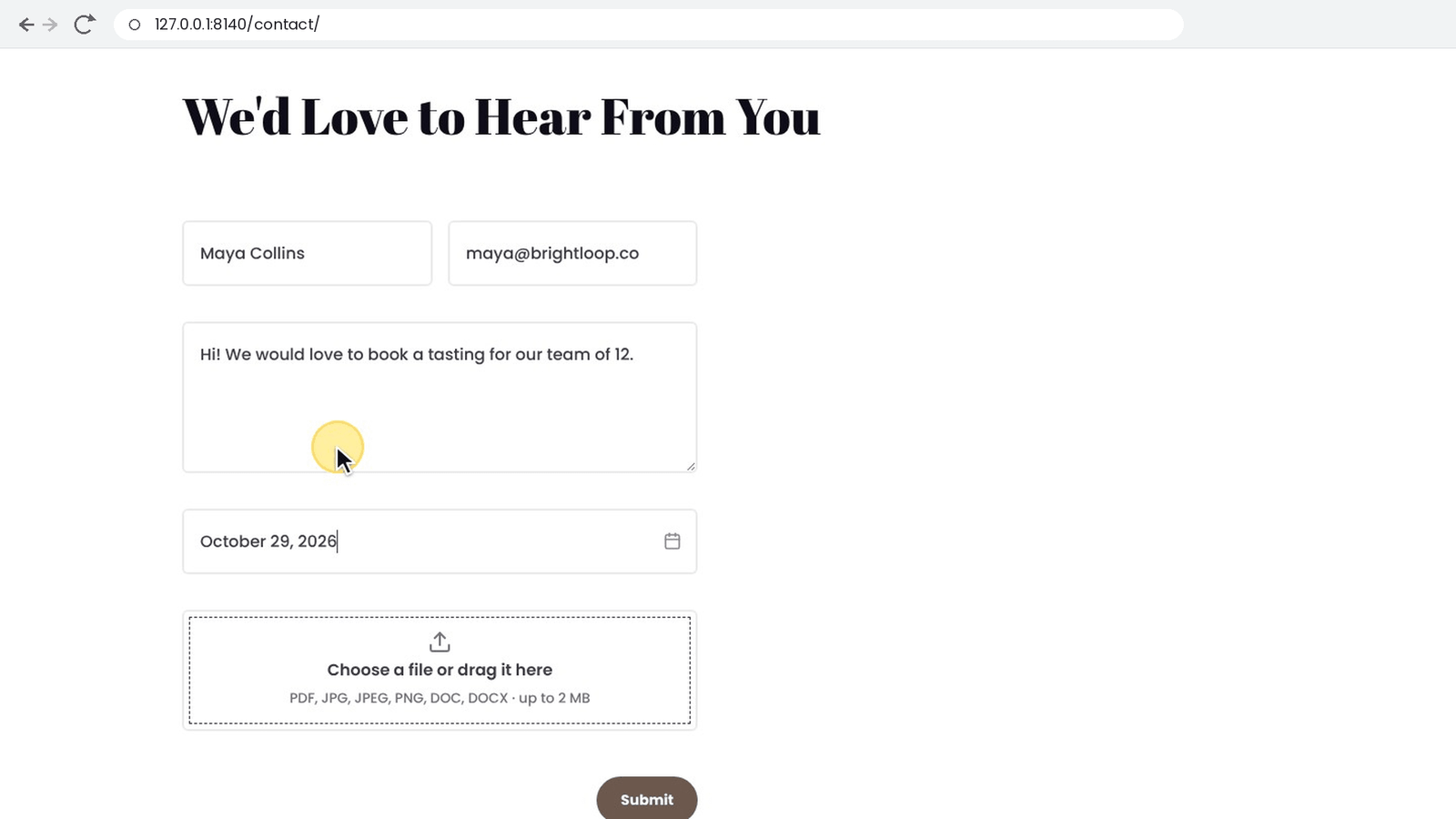
The date field
- The field shows its title as a placeholder and a calendar icon. Clicking it opens a calendar below the field, or above it when there isn’t room underneath. The calendar moves sideways to stay on screen. Phones get the same calendar.
- Month and day names follow your site language. The week starts on the day set in Settings → General → Week Starts On.
- Visitors can also type the date in the field’s format. If a typed date isn’t valid, a message appears under the field, such as That date isn’t valid. Use the format 25/10/2026. With Block Past Dates on, a typed past date shows Choose today or a later date. The form isn’t sent until the date is fixed.
- Keyboard users can press Esc to close the calendar and the Down arrow to move into the days. Enter accepts a typed date and still sends the form.
Your email shows the date exactly as the visitor saw it, in the format you chose. The server checks the date again: a date that doesn’t match the format, or a past date on a field that blocks them, is removed before Divi checks the form. A required field then shows Divi’s usual “required” message; an optional field is sent empty.
The upload field
- The field shows a box reading Choose a file or drag it here (or Choose files or drag them here when several files are allowed). The line below lists the allowed types, the size limit and, for multiple files, how many.
- Visitors click the box or drag files onto it. Each file starts uploading straight away, with a progress bar and a remove button (×) next to its name.
- Files are checked before they upload. A wrong type shows This file type is not allowed., a file that’s too big shows This file is larger than 5 MB. (with your limit), and too many files show You can upload up to 3 files. (with your number).
- On a single-file field, picking another file replaces the first one once the new file has uploaded.
- If the visitor presses Submit while a file is still uploading, they see Please wait until your files finish uploading.
The server checks every file again, including that its content really matches its extension. A visitor may also see one of these messages:
| Message | Why it appears |
|---|---|
| Too many uploads. Please try again in a few minutes. | One visitor (by IP address) uploaded 30 files within the same 10-minute period, or made 90 upload attempts in it. Files refused because of their type or size don’t count toward the 30. Uploads work again when the next 10-minute period starts. |
| This page is out of date. Please reload the page and try again. | The page was loaded more than two days ago, for example from an old page cache. |
| Your session expired. Please reload the page and try again. | The page’s security token has expired, usually after about a day. |
| This form changed. Please reload the page and try again. | The field’s settings in the page don’t match what the server expects. |
| Uploads are not available right now. Please try again later. | The site-wide storage cap for uploads is full. See Limits. |
How files reach you
- Email: when the form passes Divi’s checks, the files are attached to Divi’s own email for that form. No other email gets them. In the message body, the field’s line lists the file names.
- Temporary storage: uploads are kept in a private folder that blocks web access, so a mail queue can still send them. An hourly clean-up deletes each file 24 hours after it was uploaded, whether or not the form was sent.
- Saved entries: if Save form entries is on, the files are also copied to the entry and kept until you delete the entry. You download them from the entry. See Saved form entries.
The File Upload field card in Divi Doctor → Features shows your server’s upload limit, the private upload folder, the clean-up schedule and the number of files stored. Its Recent emails with files list shows the last 30 emails that carried files, with the file names and the page. Click Clear log to empty it.
Limits
- Both fields work with the Divi 5 Contact Form module only.
- Your mail server limits the total size of an email, often to 10–25 MB. Keep the file size and number low enough for your mail service.
- A field’s size limit can’t go above your server’s upload limit, shown as Server upload limit on the feature card.
- Across the whole site, at most 2,000 uploaded files or 2 GB are stored at a time. New uploads are refused until the hourly clean-up frees space.
- On a page served from a full-page cache, uploads fail once the cached page is older than about a day, until the cache is refreshed. Divi’s own form has the same limit.
- A mail plugin that replaces WordPress’s
wp_mail()function without running itswp_mailfilter can’t receive the attachments. - The date is sent as text in the chosen format, not as a calendar entry.
Note: If you turn either feature off later, forms keep working: their Date Picker or File Upload fields are left out of the form and are no longer required. The field settings are kept and come back when you turn the feature on again.
For developers
ddoc_cf_upload_rate_limit: files one visitor IP can upload in each fixed 10-minute period (default30;0turns the limit off). Upload attempts in the same period are limited to three times this number.ddoc_cf_upload_pending_limits: the site-wide storage cap, as[ 'files' => 2000, 'bytes' => 2147483648 ].ddoc_client_ip: the visitor IP used for the upload limit. By default it is the connection address (REMOTE_ADDR). Behind a proxy, return the real address, taken only from a header your proxy overwrites.
Questions
Can I add a file upload field to the Divi 5 Contact Form?
Yes, with Divi Doctor Pro. Enable the File Upload field card under Divi Doctor → Features, add a field to the form in the Visual Builder and set its Type to File Upload. It works with the Divi 5 Contact Form module only.
Can I add a date picker to the Divi 5 Contact Form?
Yes, with Divi Doctor Pro. Enable the Date Picker field card, then set a field’s Type to Date Picker. You choose the date format, whether visitors also pick a time, and whether past dates are blocked.
Which file types can visitors upload?
By default pdf, jpg, jpeg, png, doc and docx. In Allowed File Types you can choose other types from Divi Doctor’s safe list, which includes common documents, spreadsheets, presentations, images, zip, audio and video files. Scripts, web pages, SVG images and programs are never accepted.
What is the largest file a visitor can upload?
You set Maximum File Size per file to 1, 2, 5, 10, 20 or 50 MB; the default is 5 MB. Your server’s upload limit still applies: if it is lower, the field uses the server’s limit.
Can visitors upload more than one file?
Yes. Turn on Allow Multiple Files and set Maximum Number Of Files to 2, 3, 4, 5 or 10. The default is 3.
Can I make the file upload optional?
Yes. Turn off Divi’s Required Field option for that field. When it is on, the form can’t be sent without a file, and this is checked on the server too.
Can I stop visitors from choosing a past date?
Yes. Turn on Block Past Dates, and only today and later dates can be picked. A typed past date shows “Choose today or a later date”, and the server checks the date again.
Why does a visitor see “Too many uploads. Please try again in a few minutes.”?
One visitor, by IP address, uploaded 30 files within the same 10-minute period, or made 90 upload attempts in it. Files refused because of their type or size don’t count toward the 30. Uploads work again when the next 10-minute period starts.
Are uploaded files checked on the server?
Yes. Files are checked in the browser before they upload, and the server checks every file again, including that its content really matches its extension.