Some Divi problems only show up after a few quiet days: pages suddenly lose their styling and nobody knows what changed. Monitoring takes a snapshot of the signals that matter every couple of hours, so when something breaks you can see which layer changed just before.
Turn on monitoring
- Go to Divi Doctor → Monitoring. The Snapshots tab opens.
- Under Background monitoring, click Turn monitoring on. The badge changes to Monitoring on and shows the next WP-Cron run.
- Click Run a snapshot now to take the first snapshot straight away.
Monitoring then takes a snapshot every 2 hours through WordPress’s scheduled tasks (WP-Cron). WP-Cron only runs when someone visits the site, so on a quiet site snapshots can be days apart. To make them run on time, set up a server cron job: see Cron Setup below.
To stop, click Turn monitoring off. Snapshots you already have stay in the timeline. Divi Doctor keeps the latest 1,000 snapshots and shows the newest 200. While monitoring is off, no snapshots are taken, not even when a server cron job calls the address from Cron Setup; those calls only keep the connection light up to date.
What a snapshot records
Each snapshot loads your home page as a logged-out visitor would, fetches Divi’s shared stylesheet linked from it, and checks Divi’s cache folder, the object cache and your layouts. The Snapshot timeline shows one row per snapshot, newest first:
| Column | What it means |
|---|---|
| When | The time of the snapshot. |
| Verdict | OK, AT-RISK or BROKEN. See below. |
| CSS present | Whether the home page’s HTML loads Divi’s CSS: a stylesheet from Divi’s cache folder or one of Divi’s own stylesheets, or Divi’s styles printed in the page. Divi’s class names don’t count, because they’re in the HTML even when every stylesheet is missing. |
| Global CSS | Divi’s shared stylesheet, which styles the header, footer, off-canvas panels and body together. Shows its size when it loads, or empty with its size in bytes when it’s under 100 bytes, an HTTP error such as HTTP 404, no link when the page doesn’t link it, inline when Divi printed the styles in the page instead, or linked when it’s on another host and wasn’t fetched. |
| HTTP | The status code of the home page, such as 200. |
| et-cache files | How many CSS files are in Divi’s cache folder, or no dir if the folder is missing. |
| Newest file age | How long ago the newest CSS file was written. |
| Cache writable | Whether Divi can write to its cache folder. |
| Object cache kept data | Whether a marker saved by the previous snapshot was still there. The marker lasts twice the Expected schedule set on Cron Setup, and at least 6 hours: 6 hours with the default of 2 hours, 48 hours with 24. This column only means something when snapshots run closer together than that. The first snapshot always shows no. |
| Divi update data cached | Whether Divi’s update information is cached. |
| Layout changed | Whether the content of any Theme Builder layout or off-canvas panel changed since the previous snapshot. |
| Notes | Details, such as no Divi stylesheet or inline Divi styles found in homepage HTML, unified CSS returned HTTP 404 or unified CSS is small (60 bytes). |
The verdict is BROKEN when the home page has no Divi CSS, or when Divi’s shared stylesheet is linked but returns an error or has no CSS in it at all. A small file on its own isn’t BROKEN: it can be complete, for example when Critical CSS is on and the file holds a single short rule. It’s AT-RISK when the stylesheet is neither linked nor printed in the page, when the cache folder exists but is empty, or when the cache folder isn’t writable. Otherwise it’s OK.
Read the timeline
Read it like a flight recorder. When the site next shows the problem, find the first BROKEN row and look at what changed in that row and the ones just before it:
- CSS present = no while Layout changed = no: your content is fine, and Divi’s cached CSS wasn’t rebuilt. This is the most common case.
- Global CSS turns to empty, HTTP 404 or no link: every part of the page loses its styling at once, because Divi’s shared stylesheet is missing.
- et-cache files = 0 or Cache writable = no: the CSS files themselves are the problem. See Static-CSS pipeline.
- Object cache kept data = no across several runs that were closer together than the marker lasts: the object cache is throwing away data, including Divi’s.
- Layout changed = yes just before the problem: the layout content itself changed. Compare it with a backup or staging copy, and check Reversion watch.
Snapshots check the home page only. If the problem shows on other pages, use Page Scan on them as well.
Cron Setup
A server cron job is a scheduled task your hosting runs on its own clock, with or without visitors. Divi Doctor gives you a private address to call; while monitoring is on, each call takes a snapshot. Open Divi Doctor → Monitoring → Cron Setup.
- In your hosting control panel, open the cron jobs screen. In cPanel it’s Cron Jobs, in Hostinger hPanel Advanced → Cron Jobs, and in Plesk Scheduled Tasks.
- Add a new job. Copy the command under Command (URL method — no WP-CLI needed) and paste it exactly as the command to run. It looks like
curl -s "https://yoursite.com/?ddoc_monitor=1&token=…" >/dev/null 2>&1. - Set the schedule to every 2 hours. As a custom expression that’s
0 */2 * * *. - Save. Then wait for the first run, or open the address under Verify it works once in your browser. You should see a line that starts
Divi Doctor monitor ran at, with the snapshot’s verdict. If monitoring is off, the line saysDivi Doctor monitor: reached, but monitoring is off, so no snapshot was taken.The connection works; turn monitoring on to get snapshots. - Reload Cron Setup. The light at the top turns green.
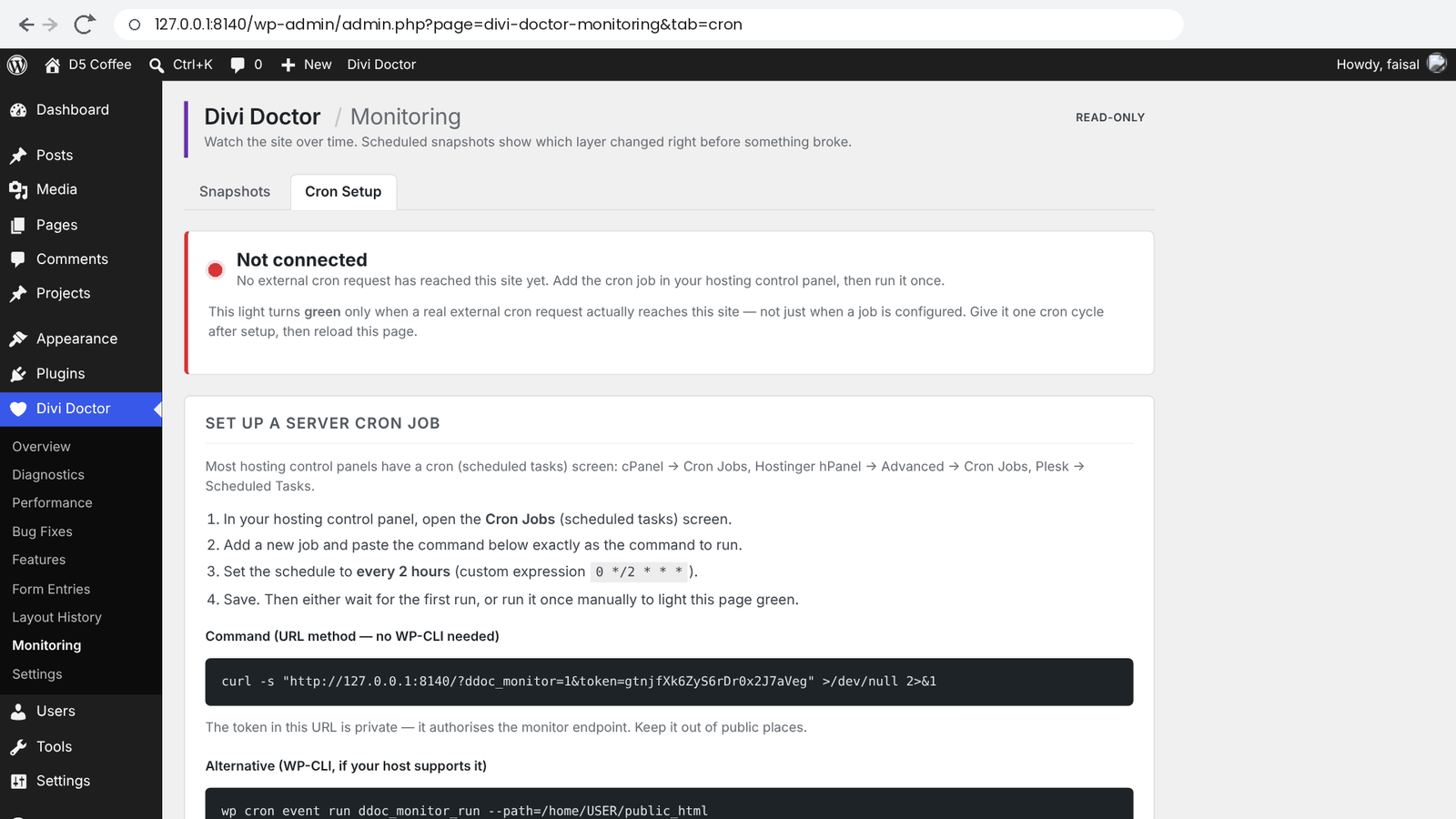
The connection light
- Not connected (red): no cron request has reached the site yet.
- Connected (green): a cron request arrived within the expected schedule, plus 30 minutes.
- Overdue (amber): a cron request arrived before, but not recently enough. The job may have stopped, or it runs less often than the expected schedule.
The light only turns green when a real request reaches the site, not when a job is merely set up. Below it you see when the last request arrived and from which IP address. The same status shows under Cron setup on the Snapshots tab.
If your cron job runs on a different schedule, enter it under Expected schedule: Runs every 1 to 24 hour(s) (2 by default), then click Save. The light uses this to decide when a request is overdue, and the Object cache kept data marker lasts twice as long, at least 6 hours.
Note: The token in the address works like a password for the monitor. Keep it out of public places. A request with a wrong token gets Divi Doctor monitor: bad token. and nothing runs.
Using WP-CLI instead
If your host supports WP-CLI, Alternative (WP-CLI, if your host supports it) shows a command like wp cron event run ddoc_monitor_run --path=/home/USER/public_html. Replace the path with your site’s folder; your host’s file manager shows it. This runs Divi Doctor’s scheduled snapshot task, so keep monitoring switched on. WP-CLI doesn’t call the private address, so the connection light stays red with this method.
Questions
Why do my Divi pages suddenly lose their styling?
Often Divi’s cached CSS wasn’t rebuilt while the content itself is fine. Monitoring takes a snapshot of the signals that matter every couple of hours, so when the site breaks you can see which layer changed just before: the CSS on the home page, Divi’s shared stylesheet, the cache folder, the object cache or a layout.
How often does Monitoring take a snapshot?
Every 2 hours, through WordPress’s scheduled tasks (WP-Cron). WP-Cron only runs when someone visits the site, so on a quiet site snapshots can be days apart. To make them run on time, set up a server cron job.
What does a snapshot check?
It loads your home page as a logged-out visitor would, fetches Divi’s shared stylesheet linked from it, and checks Divi’s cache folder, the object cache and your layouts.
What do the verdicts OK, AT-RISK and BROKEN mean?
BROKEN: the home page has no Divi CSS, or Divi’s shared stylesheet is linked but returns an error or has no CSS in it. AT-RISK: the stylesheet is neither linked nor printed in the page, the cache folder exists but is empty, or the cache folder isn’t writable. Otherwise the verdict is OK.
What does it mean when Global CSS shows empty or HTTP 404?
Every part of the page loses its styling at once, because Divi’s shared stylesheet, which styles the header, footer, off-canvas panels and body together, is missing.
How many snapshots are kept?
Divi Doctor keeps the latest 1,000 snapshots and shows the newest 200. When you turn monitoring off, the snapshots you already have stay in the timeline.
Is Monitoring in the free plugin?
No. Monitoring is part of Divi Doctor Pro. See Doctor for Divi (free) and Divi Doctor Pro.