Divi’s Contact Form only emails each message, so a lost email means a lost message. To save Divi Contact Form entries, switch on Save form entries in Divi Doctor Pro by YemLogic: it keeps a copy of every Divi 5 Contact Form submission on your site, where you can search and view them, export them to CSV and download any uploaded files. This page covers switching it on, the Form Entries screen, CSV export, files, entry settings and WordPress’s privacy tools.
Switch on saving
- Go to Divi Doctor → Features.
- Under Contact Form module, find Save form entries and click Enable.
Divi Doctor creates its entries table, and Form Entries appears in the Divi Doctor menu. From now on, every Divi 5 Contact Form on the site saves its submissions. Divi still validates and emails each message exactly as before. Right before Divi sends its email, Divi Doctor saves the fields, copies any uploaded files and later records whether Divi’s email was sent.
Only messages that pass Divi’s checks are saved. A submission with a missing required field, a wrong captcha or a failed spam check isn’t saved, because Divi doesn’t accept it either.
Turn saving off for one form
While the feature is on, each Contact Form has a Form Entries group in its Content tab, just above Spam Protection. Its Save Entries switch is on by default. Turn it off for forms whose messages should only be emailed, then save the page.
The Form Entries screen
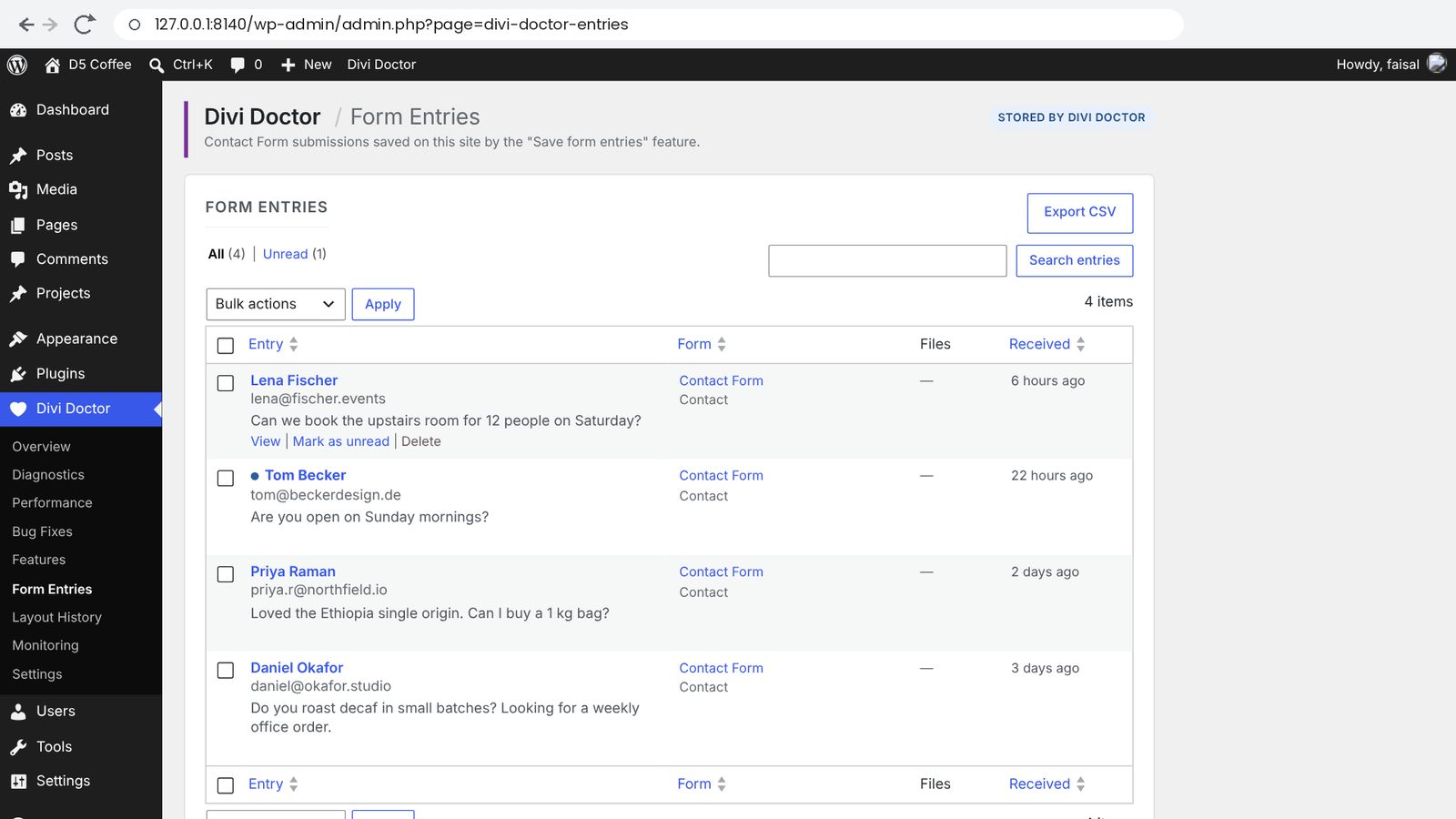
Go to Divi Doctor → Form Entries. Entries are listed newest first, 20 to a page. To change that, open Screen Options at the top right of the screen, set Entries per page (1 to 999) and click Apply. The number is saved for your user account. The table has these columns:
- Entry: the sender’s name and email, and the start of the first other field, usually the message. Unread entries have a dot in front of the name.
- Form: the form’s title (or Contact Form if it has none) and the page it’s on.
- Files: how many files came with the entry.
- Received: how long ago it arrived. Hover over it to see the date and time.
Find entries
- All and Unread above the table switch between every entry and unread ones only. Each shows its count.
- Search entries looks in the sender’s name and email, the form title and every field value.
- Click a form’s name in the Form column to show only that form’s entries. When entries come from two or more forms, an All forms menu with a Filter button also appears next to the bulk actions.
- Click the Entry, Form or Received column heading to sort. Entry sorts by email address.
Mark and delete entries
Hover over an entry to see View, Mark as read or Mark as unread, and Delete. To act on several entries, tick them, choose Mark as read, Mark as unread or Delete under Bulk actions and click Apply. Deleting removes the entry and its files for good.
View an entry
Click the sender’s name or View. Opening an entry marks it as read. The entry page shows:
- every field the visitor sent, with its label
- Files: each uploaded file as a download link, with its size
- Details: Received, Form, Page (a link to the page it was sent from), Email, Divi’s email, and, when they apply, Logged-in user and IP address
Divi’s email tells you whether Divi’s notification went out: Sent, Failed (Divi showed an error) or Unknown. Divi Doctor reads this from the message Divi showed the visitor. If it says Failed, the entry is the only copy of the message: reply using the Email link, and check your site’s email setup.
At the bottom are Mark as unread and Delete entry. ← All entries at the top takes you back to the list.
Export to CSV
Click Export CSV at the top of the list. The export contains the entries you’re looking at: it follows the current search, form filter and Unread view. The file is named like form-entries-2026-10-22.csv and has these columns:
- Entry ID, Date (in your site’s time zone), Form and Page
- one column for each field ID found in the exported entries, headed with the field’s label
- Files (the file names), Email sent (
yes,failedor empty) and Read (yesorno)
The file is UTF-8 with a byte-order mark, so Excel shows accented letters correctly. A value that starts with =, +, - or @ gets an apostrophe in front, so a spreadsheet never runs it as a formula. The files themselves aren’t in the CSV; download them from each entry.
Uploaded files
When a form has a File Upload field, the entry keeps its own copy of each file. The File Upload field feature must be on for this. The copies are stored in wp-content/uploads/ddoc-private/form-entries/, a folder that blocks direct web access. Only users who can see entries can download them, from the entry page.
These copies aren’t affected by the 24-hour clean-up of the upload field. They are deleted with the entry, by you, by the automatic clean-up or by the privacy eraser. If a file has gone missing from the server, the entry shows its name with (file missing).
Entry settings
Open Entry settings below the list, change what you need and click Save settings.
| Setting | What it does | Default |
|---|---|---|
| Delete entries automatically | Deletes entries older than the period you choose: After 30 days, 60, 90, 180, 365 or 730 days. The clean-up runs once a day and also deletes the entries’ files. It uses WP-Cron, and keeps running for your saved entries after you switch Save form entries off. | Never (keep until I delete them) |
| Store the sender’s IP address | Saves the visitor’s IP address with each new entry. An IP address is personal data, so only store it if you need it, for example to trace spam. | Off |
The Save form entries card in Divi Doctor → Features shows how many entries are saved and unread, when the next clean-up runs, and whether uploaded files are kept. If it shows Could not be scheduled, WP-Cron may be disabled; see Monitoring → Cron Setup. While the feature is off and a clean-up period is set, the card shows Automatic clean-up with Still runs for the saved entries while this feature is off.
Privacy tools
Saved entries are included in WordPress’s Tools → Export Personal Data and Tools → Erase Personal Data, listed as Contact Form entries (Divi Doctor). Entries are matched by the sender’s email address.
- An export includes each entry’s received date, page, every field and, if stored, the IP address.
- An erase deletes the person’s entries and their files.
Note: Divi Doctor reads the sender’s name and email from the fields with the Field ID name and email, as in Divi’s default form. If your form uses other IDs, entries are still saved, but the list shows the email address, or Entry # and a number, instead of a name. Without an email field, the privacy tools can’t find the entries.
Switching off and uninstalling
- Turning Save form entries off stops saving new submissions. Saved entries stay, and Form Entries stays in the menu with a notice, so you can still view, export and delete them. If you set Delete entries automatically, the daily clean-up keeps deleting old entries and their files while the feature is off.
- Deleting Divi Doctor removes entries and their files only if Delete all Divi Doctor data when the plugin is deleted is ticked in Divi Doctor → Settings. Otherwise they stay for a reinstall.
Who can see entries
Only administrators (users with the manage_options capability) can see, export or delete entries and download their files.
For developers
ddoc_cf_entries_capability: the capability needed for the Form Entries screen, export and downloads (defaultmanage_options). It also opens the menu item for that role.ddoc_cf_entry_data: filter an entry’s row data before it is saved, with Divi’s fields and form info as extra arguments. Returnfalseto skip saving it.ddoc_cf_entry_saved: action fired after an entry is saved, with the entry ID and row data.ddoc_client_ip: the visitor IP stored when Store the sender’s IP address is on. By default it is the connection address (REMOTE_ADDR). Behind a proxy, return the real address, taken only from a header your proxy overwrites.
Questions
Does the Divi 5 Contact Form save submissions?
Not by itself: Divi’s Contact Form only emails each message, so a lost email means a lost message. With Save form entries on, Divi Doctor Pro also keeps a copy of every submission on your site, under Divi Doctor → Form Entries.
Where do I see saved Contact Form entries?
Go to Divi Doctor → Form Entries. Entries are listed newest first, and you can search them, show unread ones only, filter by form and sort by column. Click the sender’s name to open an entry with every field, its files and its details.
Can I export Divi Contact Form entries to CSV?
Yes. Click Export CSV at the top of the list. The export contains the entries you’re looking at, so it follows the current search, form filter and Unread view. The file is UTF-8 with a byte-order mark, so Excel shows accented letters correctly.
Are spam and failed submissions saved?
No. Only messages that pass Divi’s checks are saved. A submission with a missing required field, a wrong captcha or a failed spam check isn’t saved, because Divi doesn’t accept it either.
Can I turn saving off for one form?
Yes. While the feature is on, each Contact Form has a Form Entries group in its Content tab. Turn off Save Entries there for forms whose messages should only be emailed, then save the page.
How do I know whether Divi’s notification email was sent?
Open the entry and look at Divi’s email: Sent, Failed or Unknown. If it says Failed, the entry is the only copy of the message, so reply using the Email link and check your site’s email setup.
Where are files from saved entries stored?
In wp-content/uploads/ddoc-private/form-entries/, a folder that blocks direct web access. Only users who can see entries can download the files, from the entry page. The files are deleted together with their entry.
Can saved entries be deleted automatically?
Yes. Under Entry settings, set Delete entries automatically to 30, 60, 90, 180, 365 or 730 days. The clean-up runs once a day and also deletes the entries’ files. The default is to keep entries until you delete them.
Does Divi Doctor store the sender’s IP address?
Only if you switch it on. Store the sender’s IP address is off by default. An IP address is personal data, so only store it if you need it, for example to trace spam.