After a visitor sends a Contact Form, Divi shows a thank-you message as plain text, with no design options. Divi Doctor adds a Success Message group to the form’s Design tab, so the message can match the rest of your site.
Switch it on
- Go to Divi Doctor → Features.
- Under Contact Form module, find Success message design and click Enable.
Every Divi 5 Contact Form now has a Success Message group in its Design tab.
Style the message
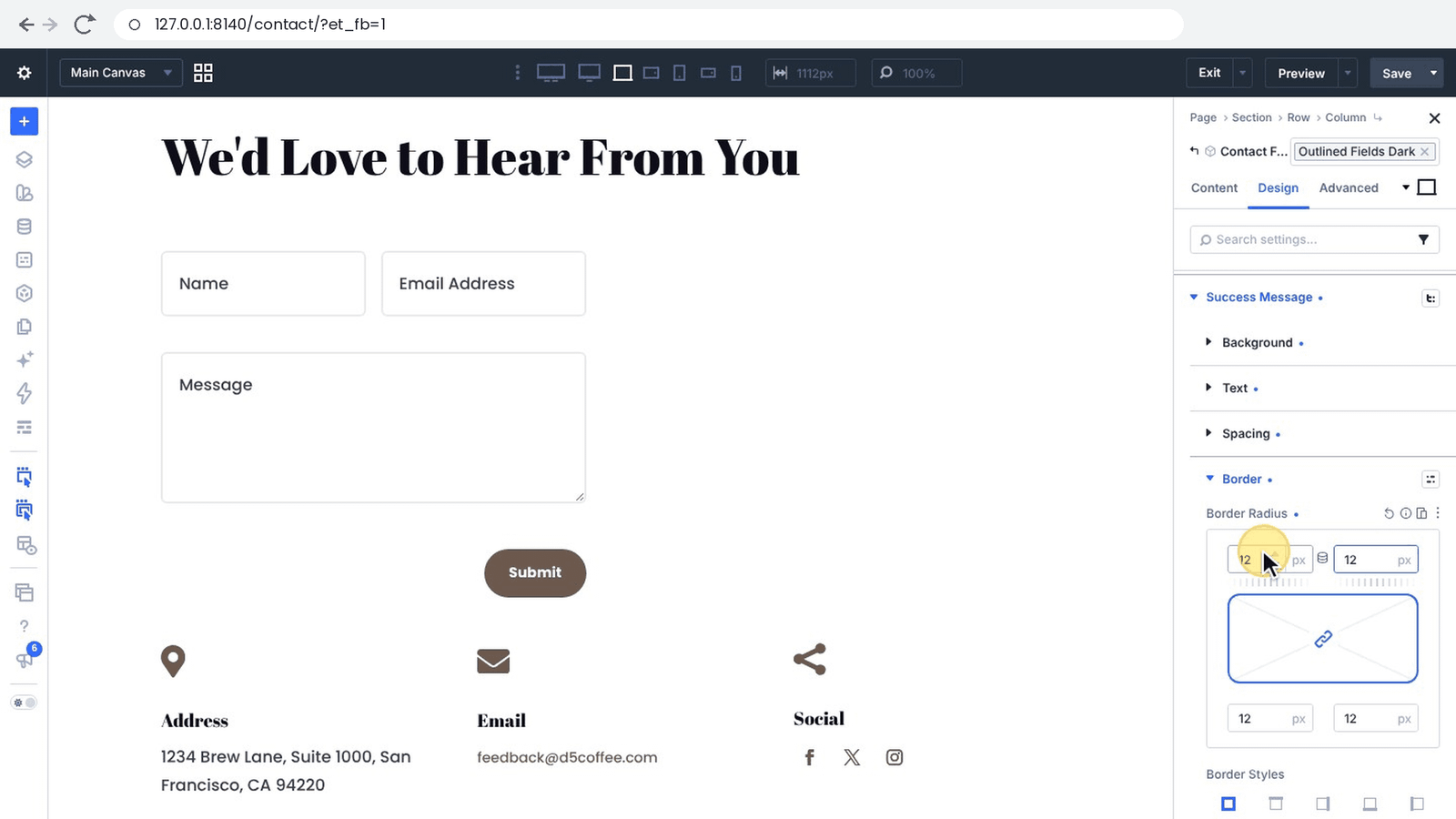
- Open the page in the Visual Builder and open the Contact Form’s settings.
- Go to Design → Success Message.
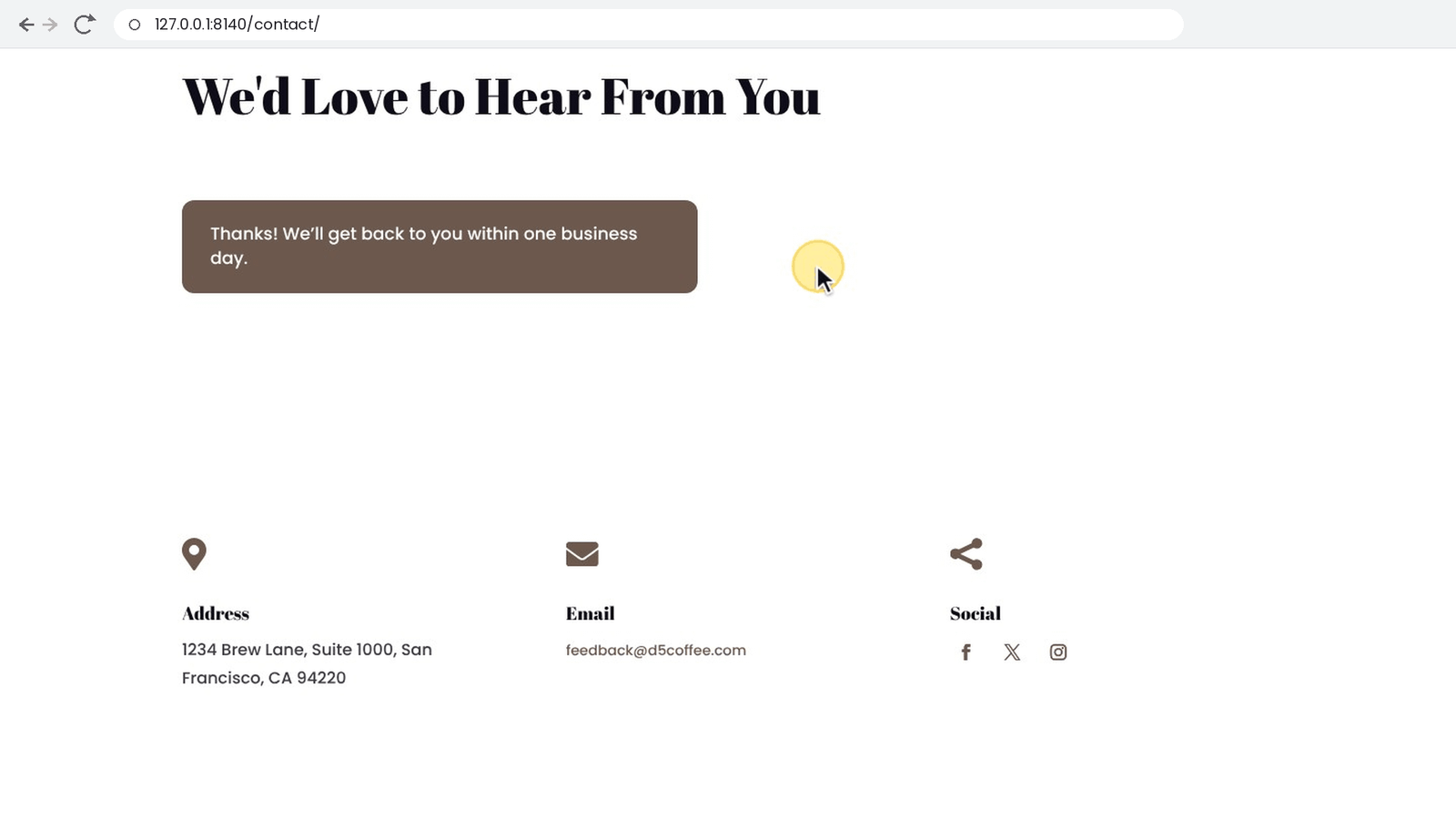
- Set the options you want, for example a background color, the text size and color, some padding and rounded corners.
- Save the page.
The group holds Divi’s own design options, the same ones you use elsewhere in the builder:
- Background: color, gradient or image behind the message.
- Text: font, weight, size, color, line height and alignment of the message.
- Spacing: margin and padding.
- Border: border radius (rounded corners), width, style and color.
- Box Shadow: a shadow around the message.
Because Divi’s own style engine builds the CSS, these options work like any other Divi design option: your global colors are available, and you can set tablet, phone and hover values. Values saved in a Contact Form preset apply too, and a form’s own values win over the preset’s.
Change the message text
The words come from Divi’s own setting, Content → Text → Success Message. If it’s empty, Divi shows “Thanks for contacting us”.
Where the design applies
- Only to the success message Divi shows after it has sent the form’s email. Divi uses the same spot for its error messages, such as a missing required field or “There was an error trying to send your message. Please try again later.”, and those keep Divi’s normal look.
- Per form: each Contact Form has its own Success Message settings. A form without any keeps Divi’s plain message.
- The CSS is added once per page, and only for forms that use these options.
- If the form uses Divi’s Enable Redirect URL, visitors are sent to the other page right after a successful send, so they see the message only briefly.
Check your design
The builder doesn’t preview the success message; Divi doesn’t show it in the builder either, because it only appears after a real submission. To see your design:
- Save the page and, if your site uses a full-page cache, purge it.
- Open the page on the front end and send a test message.
- Check the message, then adjust the design in the builder if needed and repeat.
Each test sends a real email to the form’s address. If Save form entries is on, the test is saved too; delete it from Divi Doctor → Form Entries afterwards.
Turning it off
With Success message design off, the success message goes back to your theme’s normal text style. The designs you set are kept in each form and come back when you turn the feature on again.
Questions
Can I style the Divi Contact Form success message?
Yes. Divi shows the thank-you message as plain text, with no design options. Divi Doctor adds a Success Message group to the Contact Form’s Design tab, with Divi’s own options for background, text, spacing, border and box shadow. It is in the free plugin, Doctor for Divi, and in Divi Doctor Pro.
How do I change the text of the success message?
The words come from Divi’s own setting, Content → Text → Success Message. If it’s empty, Divi shows “Thanks for contacting us”.
Why can’t I see the success message in the Visual Builder?
The builder doesn’t preview it, and Divi doesn’t show it in the builder either, because it only appears after a real submission. Save the page, purge any full-page cache, then open the page on the front end and send a test message.
Does the design also apply to the form’s error messages?
No. It applies only to the success message Divi shows after it has sent the form’s email. Divi uses the same spot for its error messages, and those keep Divi’s normal look.
Can each Contact Form have its own success message design?
Yes. Each Contact Form has its own Success Message settings, and a form without any keeps Divi’s plain message. Values saved in a Contact Form preset apply too, and a form’s own values win over the preset’s.
Can I use global colors and different values for tablet and phone?
Yes. Divi’s own style engine builds the CSS, so these options work like any other Divi design option: your global colors are available, and you can set tablet, phone and hover values.
What do visitors see when the form redirects after sending?
If the form uses Divi’s Enable Redirect URL, visitors are sent to the other page right after a successful send, so they see the message only briefly.
What happens to my designs when I turn the feature off?
The success message goes back to your theme’s normal text style. The designs you set are kept in each form and come back when you turn the feature on again.