Divi 5’s Image module has no caption option. Divi Doctor adds one: show the caption saved with the image in your Media Library, or write your own, and style it with Divi’s usual font options. This page covers how to switch it on, each option, longer captions and the limits.
Switch captions on
- Go to Divi Doctor → Features.
- Under Image module, find the Image captions card and click Enable.
Every Image module in the Visual Builder now has a Caption group in its Content tab and a Caption Text group in its Design tab. Existing images don’t change until you switch on a caption for them.
Add a caption to an image
- Open the page in the Visual Builder and open the Image module’s settings.
- In the Content tab, open Caption and switch on Show Caption.
- Choose a Caption Source: Media Library Caption or Custom Text.
- If you chose Custom Text, type the caption into Caption Text.
- Save the page.
The caption appears under the image in the builder as you edit, and on the live page after you save.
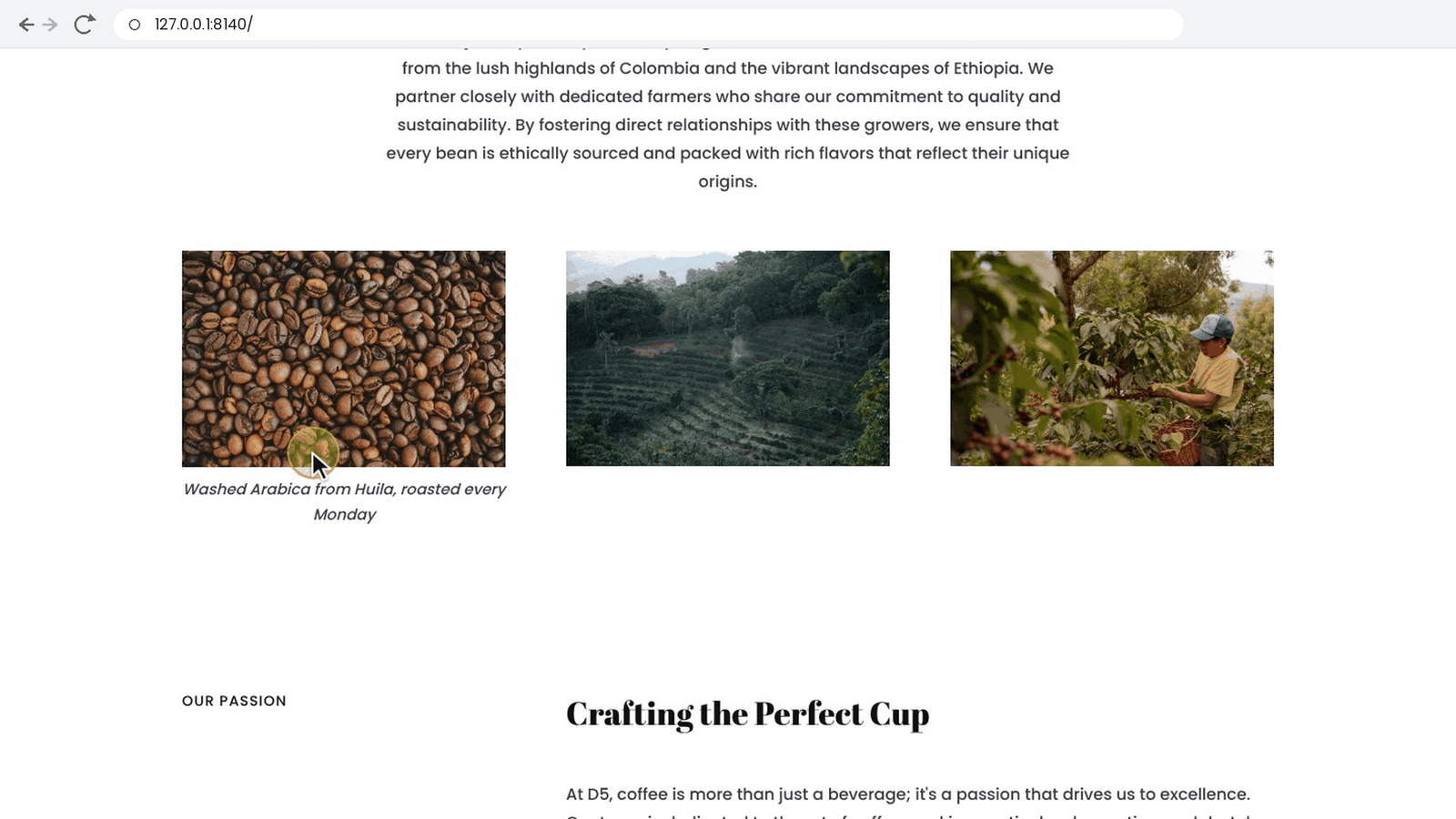
Caption options
| Option | What it does | Default |
|---|---|---|
| Show Caption | Shows a caption under the image. | Off |
| Caption Source | Media Library Caption uses the caption saved with the image in Media → Library. Custom Text uses text you write for this module only. Shown while Show Caption is on. | Media Library Caption |
| Caption Text | Your own caption. Press Enter for a new line. Basic HTML such as links, bold and italic is allowed. Shown while Caption Source is Custom Text. | Empty |
With Media Library Caption, editing the caption in the Media Library updates every Image module that uses that image. If the image has no caption there, the builder shows This image has no caption in the Media Library. under the image, and the live page shows nothing.
These options have one value for all screen sizes. A caption that’s empty, or contains only HTML tags, isn’t shown.
Design options
In the Image module’s Design tab, Caption Text is Divi’s own font group, the same one modules use for their other text. It includes font, weight, style, size, color, line height, letter spacing and text alignment. Like any Divi font option, each value can be set separately for tablet and phone and for hover. Hover values apply while visitors hover over the image module.
Without any design settings, the caption uses your site’s normal text style and sits a small gap below the image. The caption’s font settings can also come from an Image module preset.
Longer and multi-line captions
A long caption wraps onto as many lines as it needs, within the width of the image module. Divi gives the Image module a line height of zero, so Divi Doctor sets the caption’s line height to 1.7em to keep wrapped lines from overlapping. A Line Height you set in Design → Caption Text replaces it.
To start a new line at a set point, press Enter in Caption Text. Each line break you type shows as a new line, on the page and in the builder preview. A Media Library caption written on several lines keeps its line breaks too. Typing <br> still works.
If you write your caption in HTML with paragraphs or lists, a line break right next to one of those tags isn’t turned into an extra new line, so the layout of your HTML stays as you wrote it.
What it adds to the page
An Image module with a caption is output as a <figure>, and the caption as a <figcaption>. That’s the standard HTML for an image with a caption, so screen readers and search engines know the caption belongs to the image. Divi’s classes and the image itself stay the same. The caption styles are added to Divi’s own page CSS, like the module’s other design settings. Images without a caption aren’t touched.
On the page, captions are filtered the way WordPress filters post content, so scripts are removed. The builder preview is stricter and only shows simple formatting such as links, bold, italic and line breaks.
Limits
- Captions need Divi 5 and work with the Image module only.
- The Media Library caption comes from the desktop image. If you set a different image for tablet or phone, its caption isn’t used.
- Set Show Caption, Caption Source and Caption Text on the module itself, not in a preset.
- If you turn the feature off, captions no longer show on the page and the caption options disappear from the builder.
- Switching the feature on or off clears Divi’s cached CSS files, so pages pick up the change on their next view. Clear any page cache too.
Questions
Can I add a caption to an image in Divi 5?
Divi 5’s Image module has no caption option. Divi Doctor adds one: enable Image captions under Divi Doctor → Features, then switch on Show Caption in the Image module’s Content → Caption group. It is in the free plugin, Doctor for Divi, and in Divi Doctor Pro.
Can the caption come from the WordPress Media Library?
Yes. With Caption Source set to Media Library Caption, the module shows the caption saved with the image in Media → Library. Editing the caption there updates every Image module that uses that image.
Can I write my own caption for one image?
Yes. Set Caption Source to Custom Text and type the caption into Caption Text. Press Enter for a new line. Basic HTML such as links, bold and italic is allowed.
How do I style an image caption in Divi?
In the Image module’s Design tab, Caption Text is Divi’s own font group: font, weight, style, size, color, line height, letter spacing and text alignment. Each value can be set separately for tablet and phone and for hover.
Why does my image show no caption?
With Media Library Caption, an image that has no caption in the Media Library shows nothing on the live page, and the builder says so under the image. A caption that’s empty, or contains only HTML tags, isn’t shown either.
Which HTML does the caption use?
An Image module with a caption is output as a <figure>, and the caption as a <figcaption>. That’s the standard HTML for an image with a caption, so screen readers and search engines know the caption belongs to the image.
Do my existing images change when I switch captions on?
No. Existing images don’t change until you switch on a caption for them, and images without a caption aren’t touched.
Do image captions work in the Gallery module?
This feature works with the Image module only. Gallery captions in the slider layout are a separate feature: see Gallery.