To undo a Divi Theme Builder change after you saved it, restore an earlier revision of the header, body or footer. WordPress already keeps a revision every time you save a Theme Builder header, body or footer, or an item in your Divi Library, but Divi has no screen that lists them. Layout History in Divi Doctor Pro by YemLogic lists those revisions, shows what changed in each save, and lets you restore an earlier version. Still in the builder and nothing saved yet? Divi’s own undo (Ctrl+Z, or Cmd+Z on a Mac) and its History take back changes from the current editing session. This page covers how to switch it on, what’s saved, the Theme Builder and Divi Library tabs, and how to restore.
Switch Layout History on
Layout History has two features, one for each tab. Switch on the ones you need:
- Go to Divi Doctor → Features.
- For Theme Builder layouts: under Theme Builder, find the Layout history (revisions) card and click Enable.
- For the Divi Library: under Divi Library, find the Divi Library history (revisions) card and click Enable.
Layout History now appears in the Divi Doctor menu, with a Theme Builder tab and a Divi Library tab. It shows while either feature is on, and the tab of the feature that’s on opens first (Theme Builder when both are on). A tab whose feature is off says so and links to its card. Only administrators can see the screen. If you turn both features off, the menu item goes away, but the revisions stay in WordPress.
What’s saved, and when
Divi registers its Theme Builder layouts and its Divi Library with revision support, so WordPress saves a revision each time you save a header, body or footer layout, or a Library item, in the builder. That happens with or without Divi Doctor: saves you made before you switched a feature on are listed too.
- A revision holds the title and content: the sections, rows and modules with their settings.
- Settings that Divi stores outside the content aren’t part of a revision. For a Divi Library item, that’s its type, its categories and whether it’s a Component.
- How many revisions are kept follows your WordPress setting, which is unlimited by default. If revisions are switched off for the whole site, Theme Builder layouts and Divi Library items still keep their last 20 while their feature is on. Other post types aren’t affected.
Each feature card shows your site’s revision setting as WP_POST_REVISIONS, and the total number of revisions saved for its layouts or items.
The Theme Builder tab
Go to Divi Doctor → Layout History → Theme Builder. The tab lists every layout used by your live Theme Builder: headers first, then bodies, then footers, with the most recently edited first in each group. Each layout shows:
- A Header, Body or Footer badge and the layout’s name.
- When it was last saved and how many modules it has now.
- Used by: the Theme Builder templates that use it, such as Default Website Template. A template that has the layout switched off is marked (disabled).
- A table of its latest 10 revisions.
The revisions table has these columns, on both tabs:
| Column | What it shows |
|---|---|
| Saved | The date and time of the save and how long ago it was. The newest revision that matches the layout as it is now has a Current badge. |
| By | The user who saved it. |
| Modules | How many modules the layout had in that save, not counting sections, rows and columns. A sudden drop is a quick sign that something was deleted. |
| (actions) | A Compare & restore button. |
If a layout has more than 10 revisions, a note under the table says so. You can step through all of them on the compare screen. A layout without revisions shows No revisions yet. until it’s next changed and saved.
The Divi Library tab
With Divi Library history (revisions) on, go to Divi Doctor → Layout History → Divi Library. The tab lists every item saved in your Divi Library: layouts, sections, rows, modules and Components, with the most recently saved first, 20 to a page.
To narrow the list, pick a type under Show (All items, Components, Layouts, Sections, Rows or Modules), or type part of a name in Search by title, then click Filter. Each item shows:
- A Layout, Section, Row or Module badge, plus a Component badge for a Component.
- The item’s name. An item without a name shows its type and ID, such as Module #12.
- When it was last saved and how many modules it has now. An item that isn’t published also shows its status, such as Draft.
- A table of its latest 5 revisions, with the same columns as the Theme Builder tab.
If an item has more than 5 revisions, a note under the table says so, and the compare screen steps through all of them. An item without revisions shows No revisions yet. until it’s next changed and saved. Divi’s premade layouts and Divi Cloud items aren’t listed, only items saved on this site.
A Component is a Library section, row or module that Divi shows on every page that uses it. Restoring one changes it on all of those pages, so after the restore Divi Doctor clears all of Divi’s generated CSS files. For any other Library item, it clears that item’s own CSS files.
Compare revisions
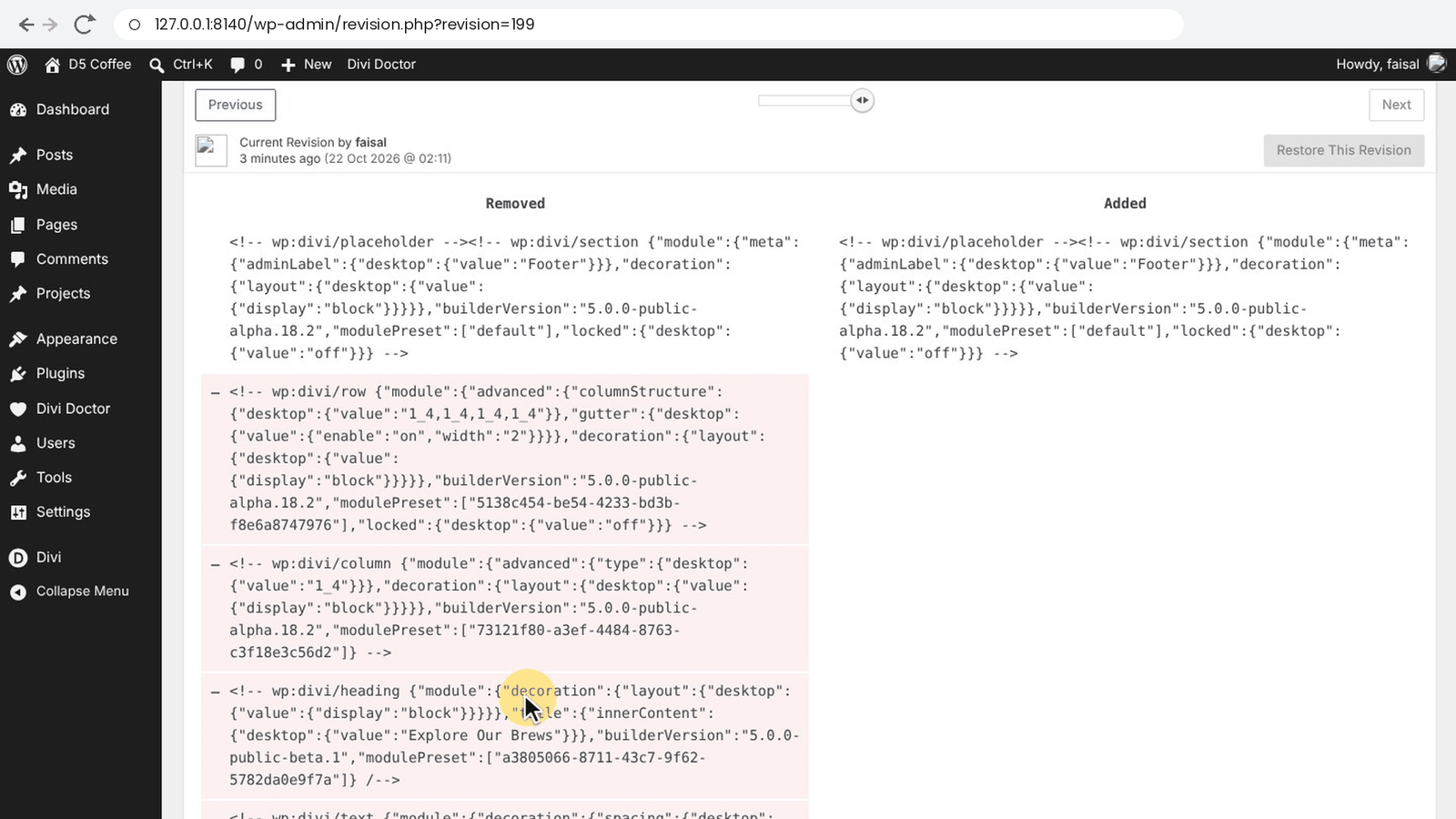
On either tab, click Compare & restore next to a revision. WordPress’s own revisions screen opens and shows what changed in that save: what was removed on the left, what was added on the right. Divi 5 stores layouts as block code, so you’ll see that code rather than a visual preview. Module names and text, such as a heading’s words, are easy to spot in it.
Use Previous and Next, or the slider, to step through the other saves of the same layout or item. The header above the comparison names the revision you’re looking at, who saved it and when; the newest one is labeled Current Revision.
Restore an earlier version
- On the compare screen, step to the version you want to go back to.
- Click Restore This Revision.
- If your site uses a page cache, clear it.
WordPress restores the layout or item and takes you back to its tab in Layout History, to the one you restored. A message confirms the restore and that Divi’s CSS files were cleared. For a Theme Builder layout, Divi Doctor clears Divi’s generated CSS files and Theme Builder caches, so the restored layout shows on every page that uses it straight away. For a Divi Library item, see The Divi Library tab.
Restoring only changes that one layout or item. It also saves a new revision, so the version you replaced stays in the history and you can go back to it. After a restore, the Current badge moves to that new revision.
Note: Restoring replaces the content Divi has saved for that layout or item, so it only happens when you click Restore This Revision. WordPress checks that you’re allowed to edit it before it restores.
Limits
- Revisions cover the content only, not settings stored outside it. For Divi Library items, the type, categories and Component setting aren’t part of a revision.
- Saves made while revisions were switched off, before you turned a feature on, have no revision.
- The Theme Builder tab lists only layouts used by the live Theme Builder. If none are found, it lists your published header, body and footer layouts instead.
- The Divi Library tab doesn’t list Divi’s premade layouts or Divi Cloud items.
- Clear any page cache after a restore.
For developers
When revisions are switched off site-wide (WP_POST_REVISIONS set to false or 0), the number Theme Builder layouts keep comes from the ddoc_tb_revisions_to_keep filter, and the number Divi Library items keep from ddoc_library_revisions_to_keep. Both receive the default, 20, and the post object. Values below 1 are raised to 1.
add_filter( 'ddoc_tb_revisions_to_keep', function ( $keep, $post ) {
	return 50;
}, 10, 2 );

add_filter( 'ddoc_library_revisions_to_keep', function ( $keep, $post ) {
	return 50;
}, 10, 2 );
Questions
Does Divi keep revisions of Theme Builder layouts?
WordPress saves a revision every time you save a Theme Builder header, body or footer, but Divi has no screen that lists them. Layout History in Divi Doctor Pro lists those revisions, shows what changed in each save, and lets you restore an earlier version.
Are saves from before I installed Divi Doctor listed too?
Yes. WordPress saves these revisions with or without Divi Doctor, so saves you made before you switched a feature on are listed too.
How many revisions are kept?
That follows your WordPress setting, which is unlimited by default. If revisions are switched off for the whole site, Theme Builder layouts and Divi Library items still keep their last 20 while their feature is on.
Does Layout History work for the Divi Library?
Yes. Enable Divi Library history (revisions). The Divi Library tab lists every item saved in your Divi Library: layouts, sections, rows, modules and Components.
What is not saved in a revision?
A revision holds the title and the content: the sections, rows and modules with their settings. Settings that Divi stores outside the content aren’t part of it. For a Divi Library item, that’s its type, its categories and whether it’s a Component.
How can I tell that something was deleted from a layout?
The Modules column shows how many modules the layout had in each save. A sudden drop is a quick sign that something was deleted.
Who can see Layout History?
Only administrators can see the screen.
What happens to the revisions when I switch the feature off?
The menu item goes away, but the revisions stay in WordPress.